
Fix Scratched and Torn Old Photos
Upload a damaged print. AI fills in scratches, cracks, creases and stains, and can add natural color too.
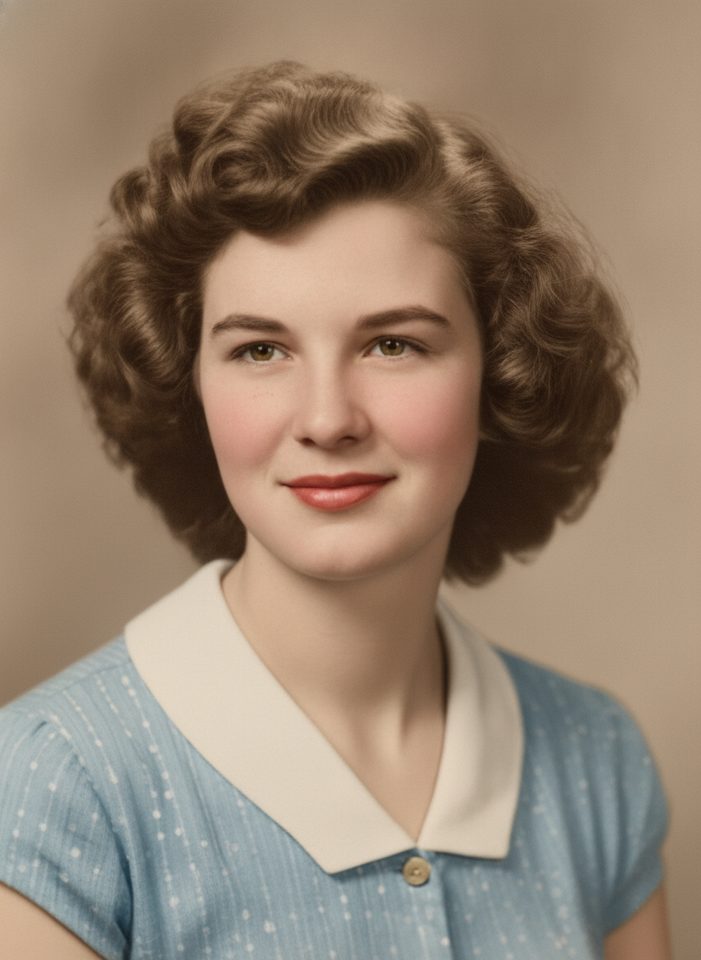
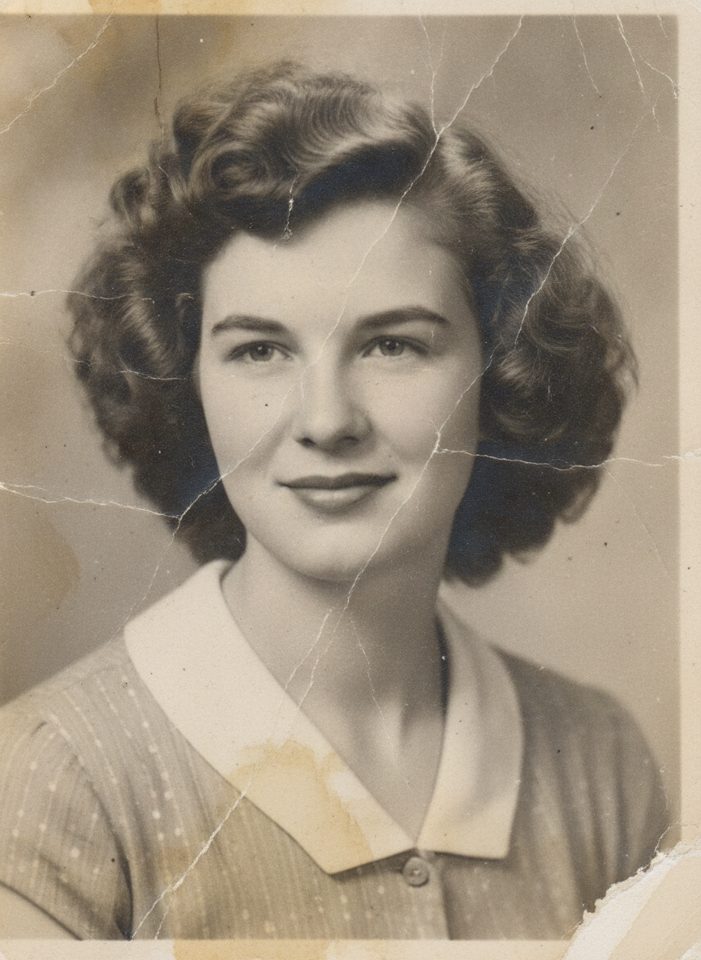 BeforeAfter
How to fix scratches on an old photo
- 1
Scan or photograph your old picture and upload it.
- 2
Choose restore, colorize, or both.
- 3
Download the restored photo to share or print.
Repair scratches, creases and torn corners
Old prints fade, crack and collect scratches, and a careful manual restoration can take hours. Scan the photo or take a sharp picture of it with your phone, upload it, and the AI removes scratches, dust, stains and small tears, fixes fading and sharpens faces. You can keep the original black and white, add natural color, or do both in one step. The tool is told to preserve every person's features, so the restored photo still looks like the people you remember. It is a quick way to save family albums, wedding photos and portraits before they fade further.
What scratch and tear repair can fix
Three modes from one upload
Restore mode keeps the original colors, so a black-and-white print stays black and white. Choose colorize or restore + colorize when you also want natural color added.
Faded color prints too
It isn't only for black-and-white photos. Faded color prints from the 1970s, 80s and 90s can have their fading fixed while restore mode keeps their original colors.
No retouching skills needed
Fixing a scan by hand means cloning out every scratch in a photo editor. Here you upload the scan and pick a mode; there are no brushes, layers or settings to learn.
Your scan stays as it is
The restored photo is a new image and your own scan is left alone, so you can compare before and after and keep both versions in your family archive.
Ways to use restored photos
Family albums
Digitize and repair a whole album so everyone in the family can keep a clear copy.
Gifts and prints
Print a restored portrait for an anniversary, a birthday or a memorial.
Family history research
Make faces and details easier to see when you document your family tree.
Sharing online
Post sharper, cleaner versions of old photos on social media and in family groups.
Tips to fix scratched photos with better results
Take the photo out of its frame or album sleeve before you scan it. Glass and plastic add glare and reflections that the AI may treat as part of the picture.
Crop away the scanner bed, white borders and any fingers before you upload, so the AI spends its effort on the photo itself.
Run restore first and check the faces before you add color. If you like the result, upload it to the AI Photo Colorizer, where you can add color hints you know.
For a badly damaged group photo, try a closer crop of one or two people from a high-resolution scan. Larger faces give the AI more detail to work with.
Simple, credit-based pricing
Every tool runs on the same credits. One image is 30 credits (60 with Nano Banana Pro), and failed generations are refunded.
Starter
For occasional images
- About 75 images per month
- About $0.13 per image
- 2,250 credits
- All 34 AI image tools
- Commercial use
- Failed generations refunded
Plus
For regular use
- About 150 images per month
- About $0.13 per image
- 4,500 credits
- All 34 AI image tools
- Commercial use
- Failed generations refunded
- Priority support
Business
For teams, agencies and high volume
- About 300 images per month
- About $0.13 per image
- 9,000 credits
- All 34 AI image tools
- Commercial use
- Failed generations refunded
- Dedicated support
Monthly and yearly plans renew automatically at the end of each period until you cancel, and you can cancel anytime in Settings. Credit packs are one-time purchases that never renew; their credits last 1 year. Prices include tax.
Scratched and torn photo repair FAQ
- What kind of damage can it fix?
- Scratches, dust, small tears, stains, fading and blur. Heavily missing areas are reconstructed by the AI, so check faces and details carefully.
- How accurate are the colors?
- The AI picks realistic, natural colors, but it can't know the original ones. Results are a plausible interpretation, not a historical record.
- Are my photos private?
- Your uploads are only used to create your result. Uploaded originals are deleted from the processing service within 24 hours.
- How should I scan my photo?
- Scan at 600 dpi or higher if you can. With a phone, shoot in even daylight, hold the camera parallel to the print and avoid glare.
- Can it restore photos with several people?
- Yes. Group photos work, but very small faces have less detail to work with, so check each face in the result.
- Should I use this or the AI Photo Colorizer?
- Use this tool for damaged photos: it repairs scratches, tears and fading, and can add color too. If the photo is in good condition and only needs color, the AI Photo Colorizer is the simpler choice.
- Can it fix a photo that is torn into pieces?
- Line the pieces up as closely as you can on the scanner glass and scan them as one image. The AI can blend the tear lines and fill small gaps, but anything missing is invented, so check faces closely.
- Can I print the restored photo?
- Yes. Download it from the result or from My Images and print it at home or at a photo lab. Start with a modest print size and check faces up close, because the restored detail depends on what your scan contains.
Related guides
BlogText to Image vs Image to Image: When to Use Which
Text to image starts from words; image to image starts from a picture you already have. How the two differ here, when each one fits, and how to use them together.
How to Write an Image Prompt That Works
A four-part way to write prompts for an AI image generator: subject, style, lighting and composition, with five example prompts to copy and change.
Choosing an Image Size and Aspect Ratio
Which aspect ratio to generate for where the image will be used: 1:1, 3:4, 4:3, 9:16 or 16:9, what a 1K image is good for, and how to avoid cropping later.
More AI tools
All tools
Text to Image
Describe what you want, choose a model, and turn your text into a 1K image.
Image to Image
Upload one to four images, describe what you want, and get a new 1K image built from them.
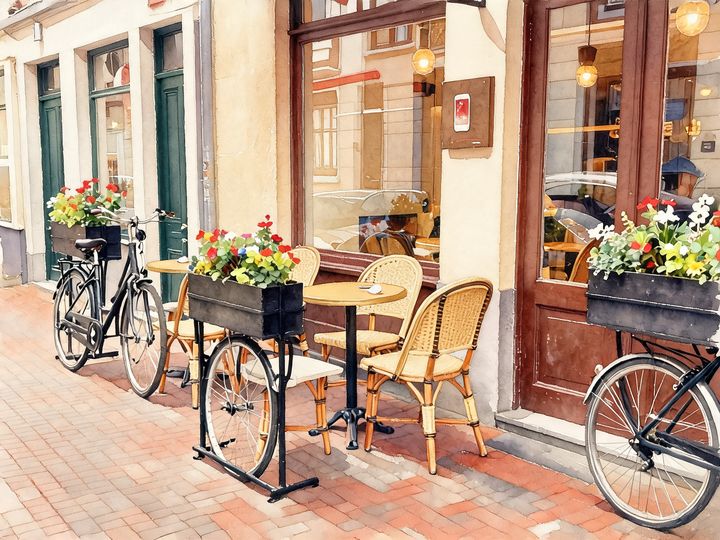
AI Style Transfer
Redraw any photo as a watercolor, oil painting, pencil sketch, pixel art, pop art or ukiyo-e print, keeping the subject and composition.

AI Logo Maker
Type your brand name and what you do, and get logo ideas in the style you pick.
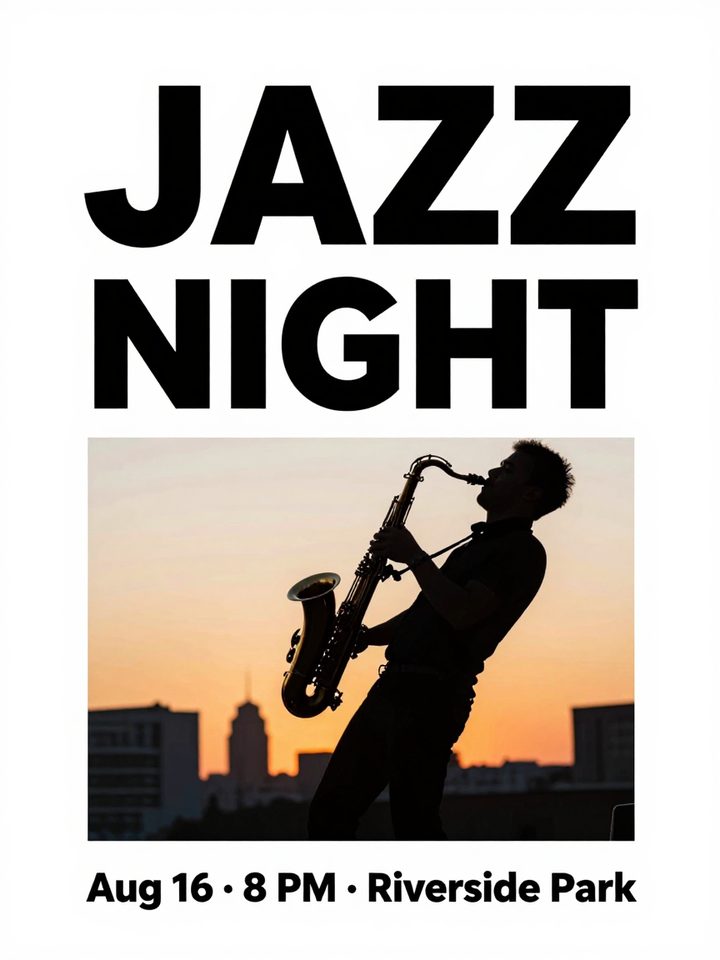
AI Poster Maker
Describe what the poster is for, add your headline, and get a finished design to share or print.
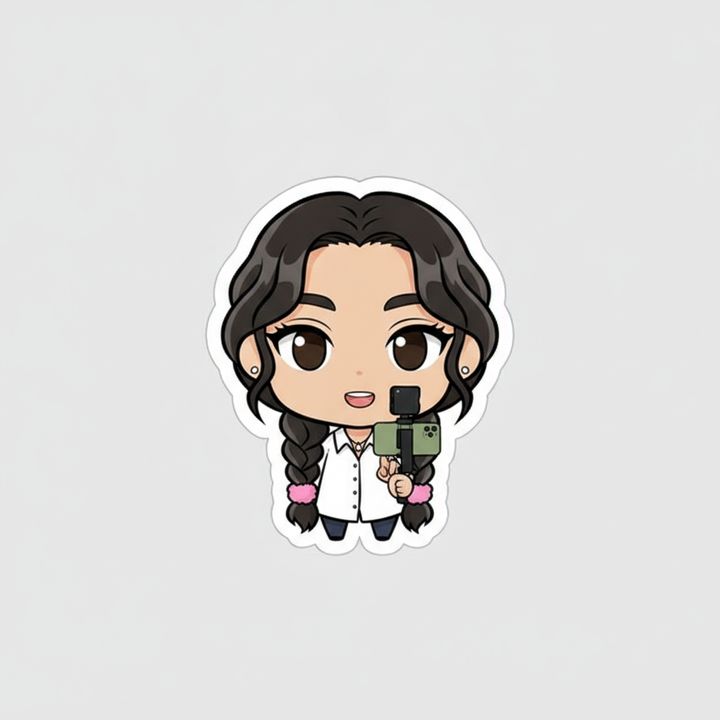
AI Sticker Maker
Upload a photo of yourself or your pet and turn it into a cute, chibi or emoji-style sticker with a white die-cut outline.
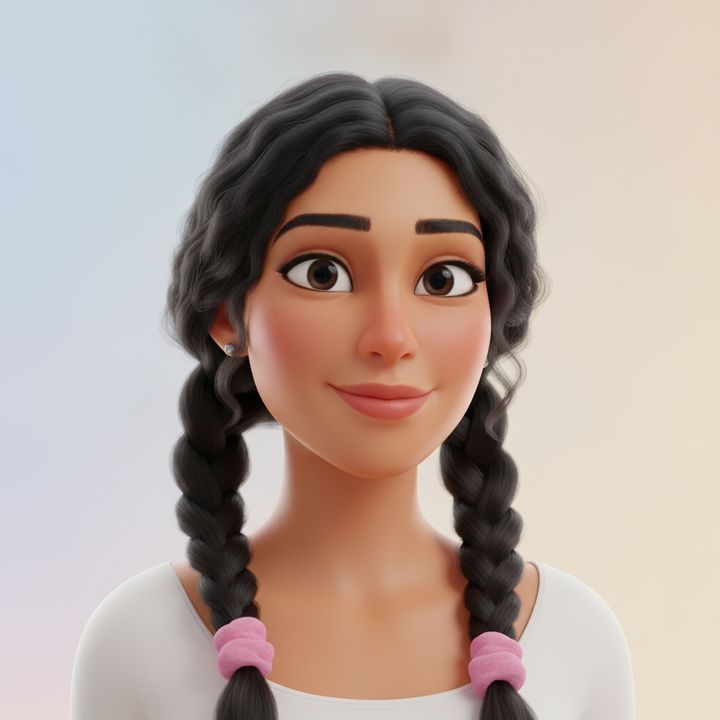
AI Avatar Maker
Turn a photo of yourself into a cartoon, pixel art or clay avatar for your profile picture.
Photo to Anime
Upload a photo and redraw it as anime, manga or a 3D cartoon, keeping the pose, outfit and composition of the original.

AI Thumbnail Maker
Type your video topic and title, and get a thumbnail with your title in big, readable text.