Text to Image AI
Describe what you want, choose a model, and turn your text into a 1K image.
How to generate an image from text
- 1
Describe the image you want in plain words.
- 2
Pick a model and an aspect ratio, then click Generate.
- 3
Download your image or find it later in My Images.
What is text to image AI?
Text to image AI turns a written description into a picture. You describe the subject, the setting, the light and the style, and the model draws a new image to match. Here you also choose the model. The default is Z-Image by Alibaba, a reasonable start for drafts and everyday images. You can switch to Nano Banana 2 Lite, Nano Banana, Seedream 5.0 Lite, GPT Image 2, GPT Image 2.5, Nano Banana 2 or Nano Banana Pro and run the same prompt again to compare. Use it for social posts, blog images, product concepts, mood boards and ad creatives. Each image is 1K and saved in My Images.
What this text to image tool gives you
Several models, one prompt box
Run the same prompt through different models and keep the result you like. Z-Image is the default, GPT Image 2 and 2.5 are worth trying when the picture needs lettering, and Nano Banana Pro is the larger model at 60 credits.
Photos, illustrations and art styles
Name a style in the prompt, such as product photo, watercolor, 3D render, flat vector or oil painting. One text to image tool covers them all, so you don't need a separate AI art generator.
Plain sentences, no prompt syntax
Write the way you would brief a designer. There are no weights, tags or negative prompt fields to learn; one clear sentence about the subject, the setting and the light is enough to start.
Refine the result instead of starting over
Like the image but want one change? Upload it to Image to Image and describe the fix, such as a different background color or an extra object, rather than writing a new prompt.
What you can make with text to image
Social media posts
Create eye-catching visuals for Instagram, TikTok covers and Pinterest pins without digging through stock photo sites.
Blog and article images
Illustrate a post with an image that fits the topic exactly, instead of a generic stock photo.
Ads and marketing creatives
Try several visual ideas for a campaign in minutes before you commit to a photo shoot.
Concept art and mood boards
Explore styles, scenes and color palettes for a project, a room or a brand.
Tips for better text to image results
Start with the subject, then add the setting, the light and the style. “A red bicycle against a brick wall, morning sun, film photo” is easier to follow than a long list of keywords.
Choose the aspect ratio before you write. A 9:16 frame suits one tall subject, while 16:9 leaves room for a wide scene or empty space for a headline.
Describe what you want to see rather than what you don't. Instead of “no people”, write “an empty street at dawn”; positive descriptions are followed more reliably.
Change one thing at a time between tries. If the colors are right but the angle is wrong, keep the prompt and only edit the camera part, such as “seen from above”.
Simple, credit-based pricing
Every tool runs on the same credits. One image is 30 credits (60 with Nano Banana Pro), and failed generations are refunded.
Starter
For occasional images
- About 75 images per month
- About $0.13 per image
- 2,250 credits
- All 34 AI image tools
- Commercial use
- Failed generations refunded
Plus
For regular use
- About 150 images per month
- About $0.13 per image
- 4,500 credits
- All 34 AI image tools
- Commercial use
- Failed generations refunded
- Priority support
Business
For teams, agencies and high volume
- About 300 images per month
- About $0.13 per image
- 9,000 credits
- All 34 AI image tools
- Commercial use
- Failed generations refunded
- Dedicated support
Monthly and yearly plans renew automatically at the end of each period until you cancel, and you can cancel anytime in Settings. Credit packs are one-time purchases that never renew; their credits last 1 year. Prices include tax.
Text to image FAQ
- How do I write a good prompt?
- Describe the subject, the setting, the lighting and the style. Specific details like "golden hour", "watercolor" or "close-up" give better results.
- Can I use the images commercially?
- Yes, images you generate are yours to use, including for commercial projects, subject to our terms of service.
- How many credits does one image cost?
- The cost is shown on the Generate button. If a generation fails, the credits are refunded automatically.
- Which AI model should I pick?
- Start with Z-Image by Alibaba, the default. For words in the picture, such as a poster title, try GPT Image 2 or 2.5. Nano Banana Pro is the largest Google model here and costs 60 credits; the others cost 30. We are not affiliated with any of these companies.
- Which aspect ratios can I choose?
- Square (1:1), portrait (3:4 and 9:16) and landscape (4:3 and 16:9), so you can match feeds, stories, banners and prints.
- What can't I generate?
- Sexual content, real people in misleading or harmful situations, hateful or violent imagery, and anything illegal. Prompts are checked before generation, and blocked requests are never charged. See our usage policy for details.
- Can text to image put words in a picture?
- It can draw short text, such as a word on a sign or a title on a poster. Put the exact words in quotes in your prompt. Long text and small lettering can come out misspelled, so check it, and add longer copy in a design tool.
- Will the same prompt give me the same image?
- No. Every generation is a new image, so running a prompt twice gives you two different options, each charged separately (30 credits, or 60 with Nano Banana Pro). To keep an image you like and change only part of it, upload it to Image to Image instead.
Related guides
BlogHow to Write an Image Prompt That Works
A four-part way to write prompts for an AI image generator: subject, style, lighting and composition, with five example prompts to copy and change.
Choosing an Image Size and Aspect Ratio
Which aspect ratio to generate for where the image will be used: 1:1, 3:4, 4:3, 9:16 or 16:9, what a 1K image is good for, and how to avoid cropping later.
Text to Image vs Image to Image: When to Use Which
Text to image starts from words; image to image starts from a picture you already have. How the two differ here, when each one fits, and how to use them together.
More AI tools
All tools
Image to Image
Upload one to four images, describe what you want, and get a new 1K image built from them.
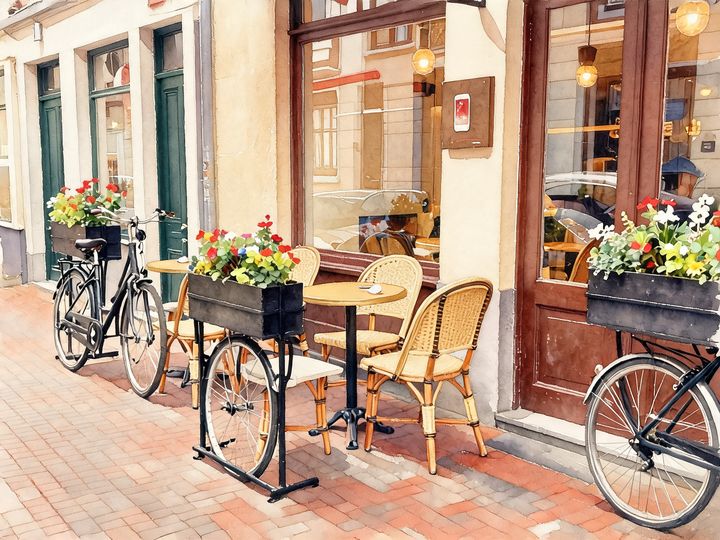
AI Style Transfer
Redraw any photo as a watercolor, oil painting, pencil sketch, pixel art, pop art or ukiyo-e print, keeping the subject and composition.
AI Logo Maker
Type your brand name and what you do, and get logo ideas in the style you pick.
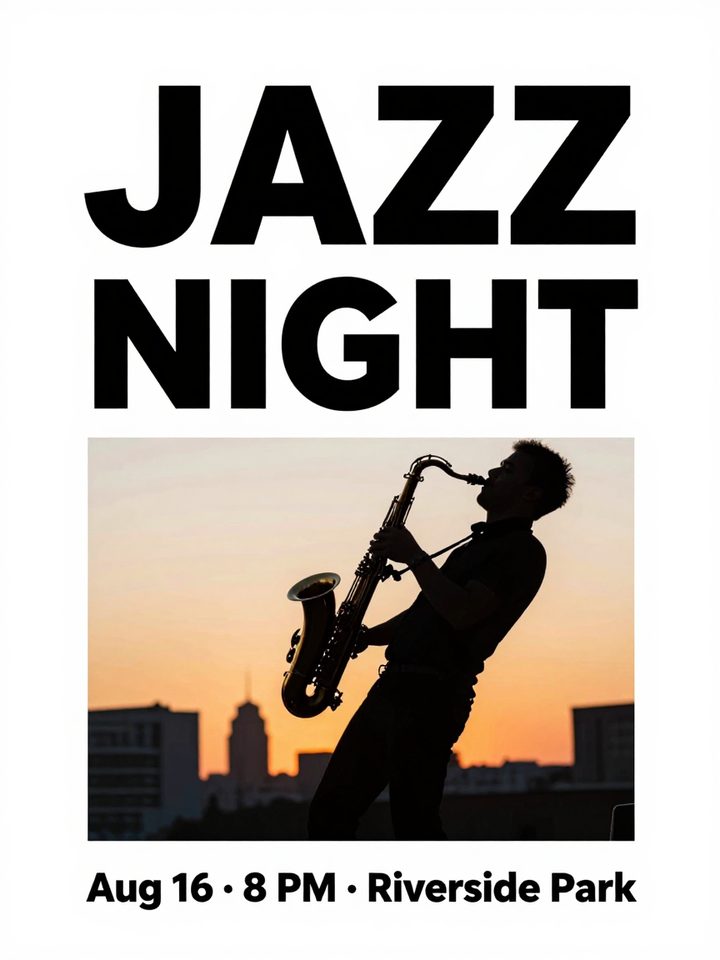
AI Poster Maker
Describe what the poster is for, add your headline, and get a finished design to share or print.
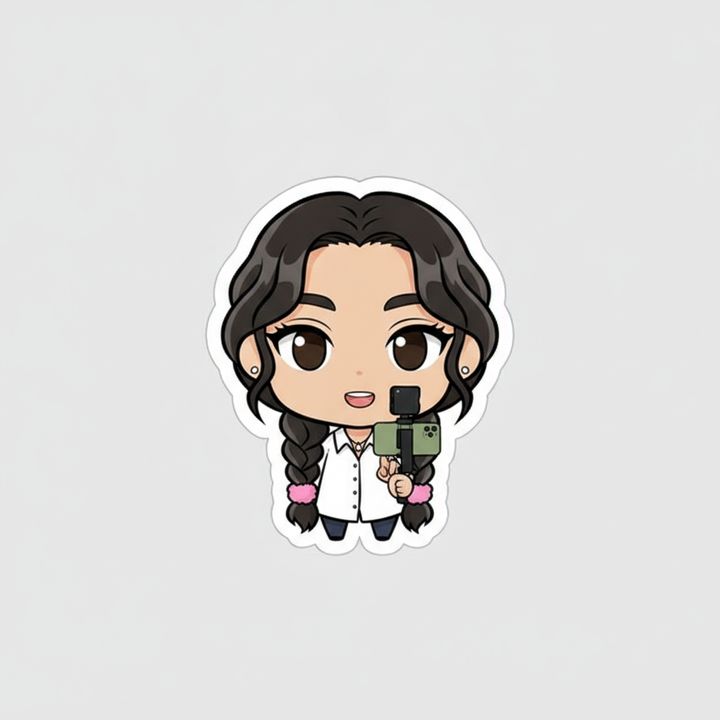
AI Sticker Maker
Upload a photo of yourself or your pet and turn it into a cute, chibi or emoji-style sticker with a white die-cut outline.
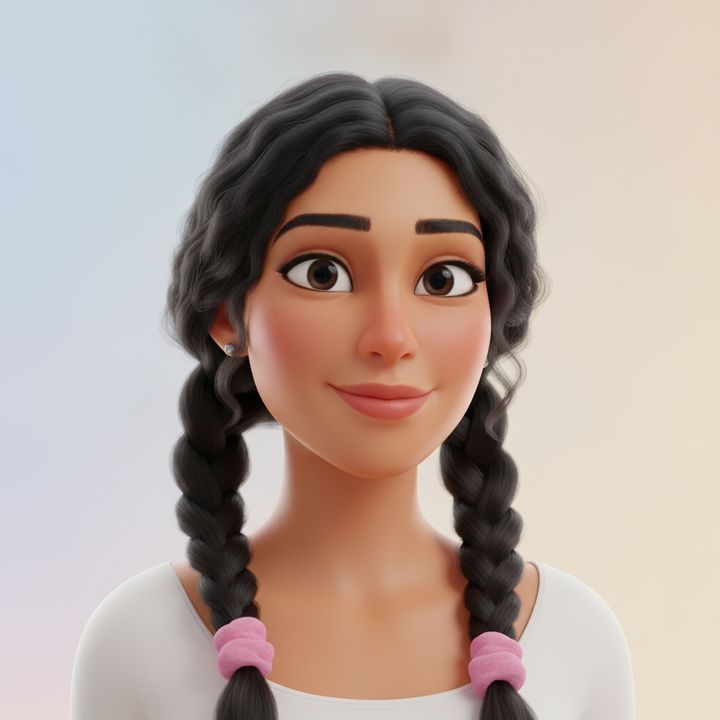
AI Avatar Maker
Turn a photo of yourself into a cartoon, pixel art or clay avatar for your profile picture.
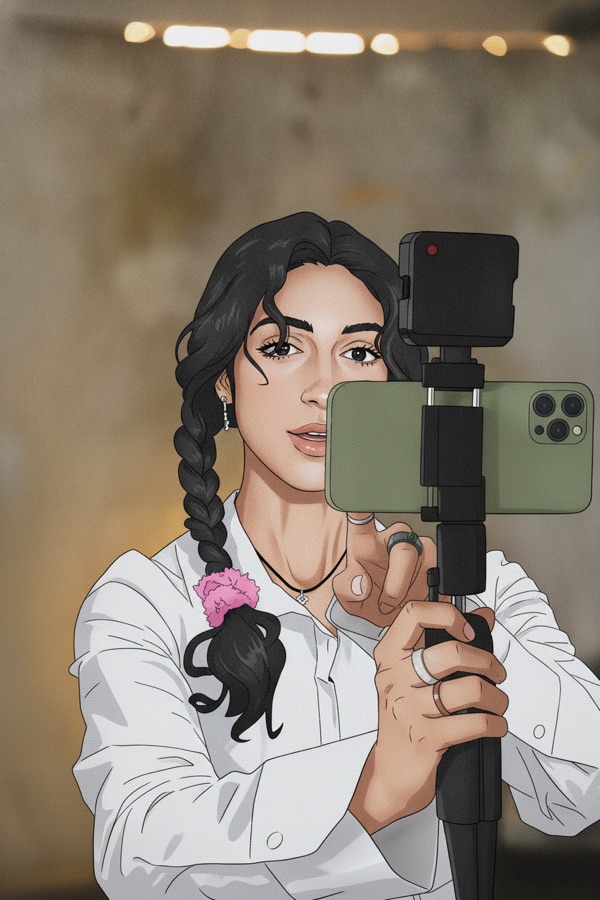
Photo to Anime
Upload a photo and redraw it as anime, manga or a 3D cartoon, keeping the pose, outfit and composition of the original.
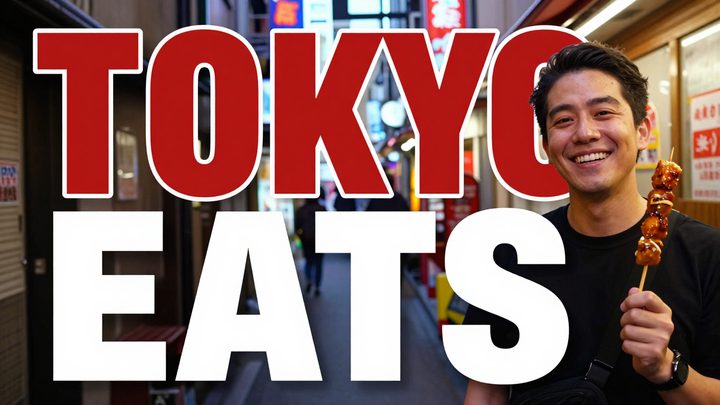
AI Thumbnail Maker
Type your video topic and title, and get a thumbnail with your title in big, readable text.
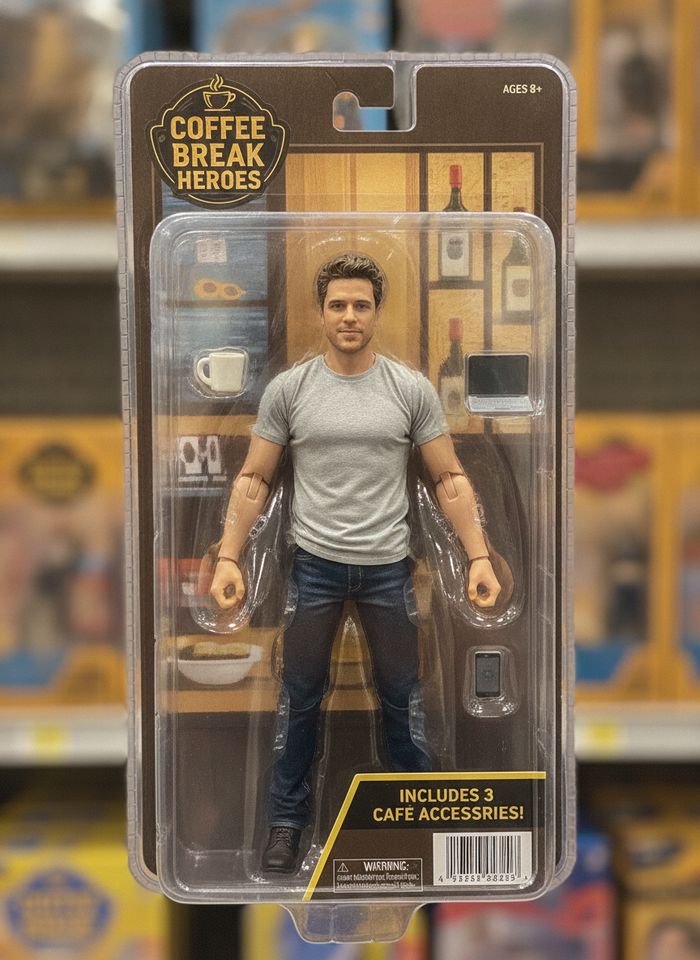
AI Action Figure Generator
Upload a photo of a person or a pet and see it as a collectible toy figure: boxed with accessories, posed on a desk, or as a cute blind-box vinyl figure.