
Choosing an Image Size and Aspect Ratio
Which aspect ratio to generate for where the image will be used: 1:1, 3:4, 4:3, 9:16 or 16:9, what a 1K image is good for, and how to avoid cropping later.
The aspect ratio is the shape of the image: how wide it is compared with how tall. It is worth choosing before you write the prompt, because the model composes the picture for the frame it is given. A scene generated as a square and cropped to a banner afterwards usually loses the part you cared about.
The five ratios and where they fit
Text to Image offers five ratios. The first number is the width.
- 1:1 (square). Profile pictures, product listing images, logos, stickers and square feed posts. A square keeps one centered subject and wastes little space.
- 3:4 (portrait). Portrait feed posts, posters, covers and anything with one standing subject. It is close to the 2:3 and 4:5 shapes many platforms use, so only a thin strip is lost if you have to crop.
- 4:3 (landscape). Images inside an article, product photos with some room around the item, and older 4:3 slide decks.
- 9:16 (tall). Full-screen phone formats: stories, short vertical videos and phone wallpapers.
- 16:9 (wide). Video thumbnails, widescreen slides, page headers and desktop wallpapers.
Platforms change their recommended sizes from time to time, so check the current spec for the place you are publishing before you make a batch.
How big the image is
Images here are generated at about 1K, which means roughly a thousand pixels on the long side. The exact pixel size depends on the model and the ratio.
That is enough for:
- phone and laptop screens, social posts, thumbnails and slides;
- small prints. At 300 dpi, a thousand pixels is a little under 9 cm (about 3.4 inches), so a card or a small photo is fine.
It is not enough for a large print such as an A3 poster. If the image is going to be printed big, treat the result as a draft of the design, not as the final file.
Compose for the frame
Say in the prompt how the subject sits in the shape you chose:
- Tall frames suit one upright subject: a person, a bottle, a building. Add "full body" or "from head to toe" if feet keep getting cut off.
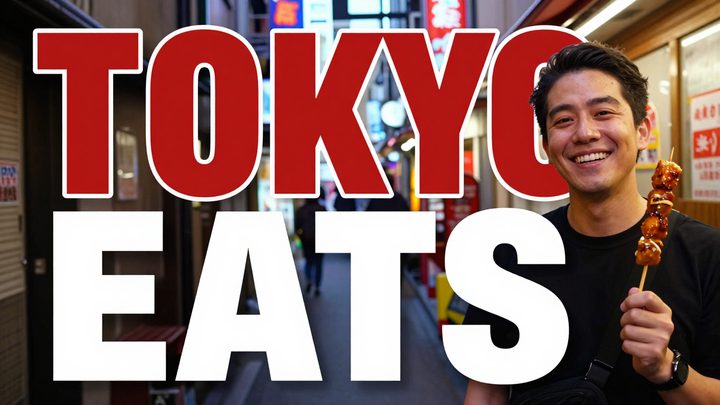
- Wide frames suit scenes and leave room for text. If a headline will go on top, ask for it: "the subject on the right, empty sky on the left".
- Squares want a centered subject. Ask for "centered, with space around it" if the picture will be cropped to a circle, as profile pictures are.
This 16:9 thumbnail was made with the Thumbnail Maker. The title fills the left and the host sits on the right, which only works because the frame is wide.
Tools with a fixed shape
Some tools choose the ratio for you, because the job decides it:
- Logo Maker and Sticker Maker are always 1:1.
- Thumbnail Maker is 16:9, or 9:16 for vertical video.
- Poster Maker starts at 3:4 and offers the other four ratios as well.
When you already have the image
If a picture you like is the wrong shape, don't stretch it. Two options:
- Crop when the new shape is narrower than what you have and nothing important sits at the edges.
- Extend when you need more picture, for example a square that has to become a 16:9 banner. The Image Extender adds new picture around the original to reach the ratio you pick.
In Image to Image, most models also have an Auto ratio, which keeps the shape of the image you uploaded. Use it when you are editing a photo and its shape should not change.
The short version
Decide where the image will be used, pick the ratio that place expects, then write the prompt for that frame. For more on the prompt itself, see how to write an image prompt that works.
Try these tools

AI Logo Maker
Type your brand name and what you do, and get logo ideas in the style you pick.
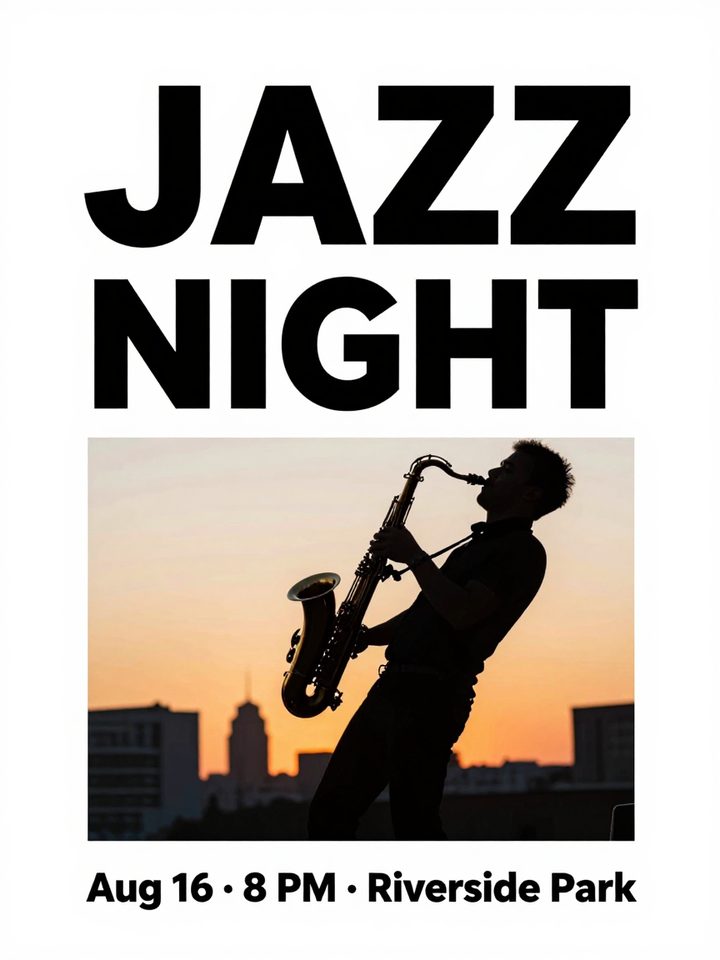
AI Poster Maker
Describe what the poster is for, add your headline, and get a finished design to share or print.
AI Thumbnail Maker
Type your video topic and title, and get a thumbnail with your title in big, readable text.