
AI Thumbnail Maker
Type your video topic and title, and get a thumbnail with your title in big, readable text.
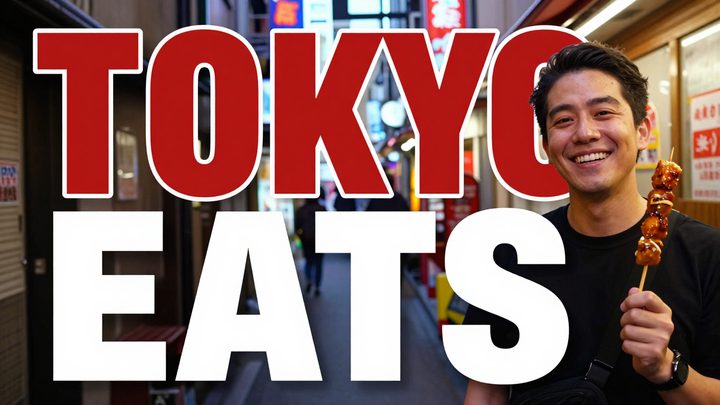
How to make a thumbnail with AI
- 1
Type what the video is about and the title text.
- 2
Pick a style and 16:9 or 9:16, then click Generate.
- 3
Download the thumbnail or find it later in My Images.
What is an AI thumbnail maker?
An AI thumbnail maker designs the cover image for a video from a short text brief. Type what the video is about and the few words you want on the thumbnail, and the tool draws a scene with a clear subject, strong contrast and your title in large letters. Pick 16:9 for YouTube and other landscape players, or 9:16 for Shorts, Reels and TikTok covers. Four styles cover common channel types: bold for high-energy topics, clean for tutorials and business, gaming for game videos, and vlog for travel and lifestyle. Short titles come out best, so check the text before you upload. Every thumbnail is saved in My Images.
What this AI thumbnail maker does well
Title text you can read at a glance
The title is drawn large and in high contrast as part of the design, so it stays readable when the thumbnail shrinks to a small card in search results or on a phone.
16:9 and 9:16 frames
Make a landscape thumbnail for YouTube or a vertical cover for Shorts, Reels and TikTok from the same idea, without cropping one format into the other.
Styles for different channels
Bold uses saturated colors and big shapes, clean keeps a simple layout, gaming adds neon and action, and vlog looks like a bright, natural photo.
Built around one clear subject
Thumbnails work best with one focal point. The AI builds the scene around the main subject of your topic, rather than filling the frame with small details.
Who uses an AI thumbnail maker
YouTube creators
Make a thumbnail for each upload without spending an hour in a design app, and try a few versions of a title before you publish.
Shorts and TikTok creators
Create a 9:16 cover with a short title for each clip, so your Shorts, Reels or TikTok profile grid looks tidy and consistent.
Podcasts and courses
Give each podcast episode, webinar recording or course lesson a cover that shows the topic clearly, using the same style across a series.
Brands and agencies
Produce thumbnail options for product demos, tutorials and ad videos, compare them with your team, and keep the one that fits your brand colors.
Tips for a better AI YouTube thumbnail
Keep the title to three to five words and put it in quotes, such as “I Tried It for 30 Days”. Short text reads better on a phone and is drawn more reliably.
Describe one main subject and its emotion, for example “a surprised man holding a giant burger”. One clear face or object works better than a busy collage.
YouTube shows the video length in the bottom-right corner, so ask for the title on the left or at the top, such as “title on the left, subject on the right”.
Check the result at phone size before you upload. If you can't read the title or tell what the video is about in a second, simplify the prompt and try again.
Simple, credit-based pricing
Every tool runs on the same credits. One image is 30 credits (60 with Nano Banana Pro), and failed generations are refunded.
Starter
For occasional images
- About 75 images per month
- About $0.13 per image
- 2,250 credits
- All 34 AI image tools
- Commercial use
- Failed generations refunded
Plus
For regular use
- About 150 images per month
- About $0.13 per image
- 4,500 credits
- All 34 AI image tools
- Commercial use
- Failed generations refunded
- Priority support
Business
For teams, agencies and high volume
- About 300 images per month
- About $0.13 per image
- 9,000 credits
- All 34 AI image tools
- Commercial use
- Failed generations refunded
- Dedicated support
Monthly and yearly plans renew automatically at the end of each period until you cancel, and you can cancel anytime in Settings. Credit packs are one-time purchases that never renew; their credits last 1 year. Prices include tax.
AI thumbnail maker FAQ
- What should I type in the prompt?
- What the video is about and the exact title text in quotes, for example: home ramen recipe, “15-Minute Ramen”. You can add a color scheme, a mood or the main object you want to show.
- Can I put my own face in the thumbnail?
- Not with this tool, because it works from text only. Ask for empty space on one side and add your photo in an editor, or upload your photo to Image to Image and describe the thumbnail you want.
- Will the title text be spelled correctly?
- Short titles usually come out right. Long titles, small subtitles and numbers are more likely to have a wrong letter. Check the text before you upload, and generate again if anything is off.
- Does the thumbnail meet YouTube's size rules?
- Thumbnails are standard 1K resolution (about 1024 px). YouTube accepts images at least 640 px wide and under 2 MB; if the file is larger, save it as a JPG first. This tool doesn't upscale to 1280 × 720.
- Can I make covers for Shorts, Reels or TikTok?
- Yes. Choose 9:16 for a vertical cover. These apps place buttons and captions over the top and bottom of the frame, so ask for the title in the middle of the image.
- How many credits does a thumbnail cost?
- Each thumbnail costs 30 credits. If a generation fails, the credits are refunded automatically. Every run gives a new design, so you can make two or three options and test which title works best.
- Which AI model makes the thumbnails?
- This tool runs on Alibaba's Z-Image text-to-image model through its API. We are an independent service and are not affiliated with Alibaba, Google, OpenAI or YouTube.
- Can I use game characters, celebrities or brand logos?
- Avoid them. Copyrighted characters, other brands' logos and real people in misleading scenes can break platform rules and our usage policy, and such prompts may be blocked at no charge. Otherwise, you can use your thumbnails commercially, subject to our terms.
Related guides
BlogChoosing an Image Size and Aspect Ratio
Which aspect ratio to generate for where the image will be used: 1:1, 3:4, 4:3, 9:16 or 16:9, what a 1K image is good for, and how to avoid cropping later.
How to Write an Image Prompt That Works
A four-part way to write prompts for an AI image generator: subject, style, lighting and composition, with five example prompts to copy and change.
More AI tools
All tools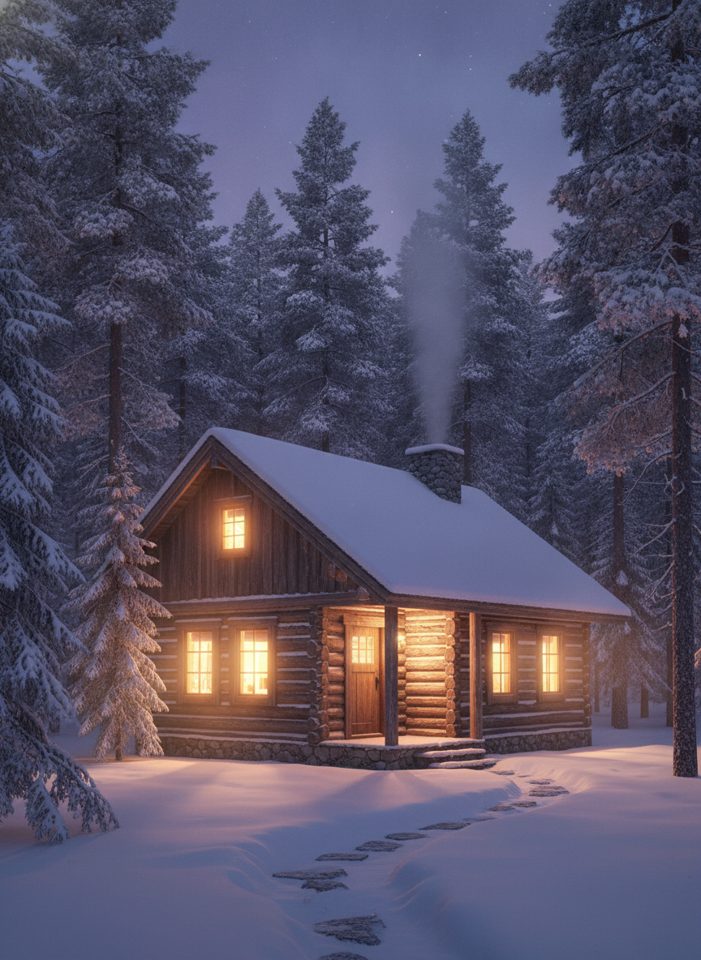
Text to Image
Describe what you want, choose a model, and turn your text into a 1K image.
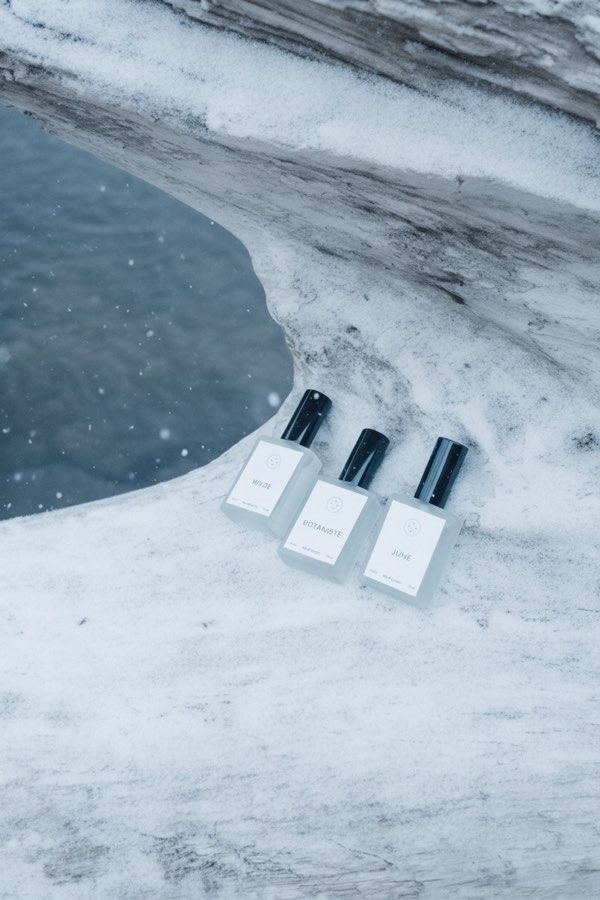
Image to Image
Upload one to four images, describe what you want, and get a new 1K image built from them.
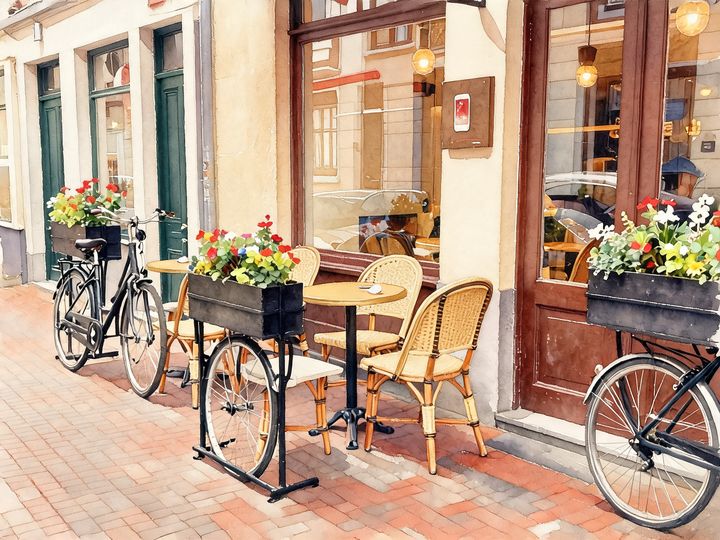
AI Style Transfer
Redraw any photo as a watercolor, oil painting, pencil sketch, pixel art, pop art or ukiyo-e print, keeping the subject and composition.
AI Logo Maker
Type your brand name and what you do, and get logo ideas in the style you pick.
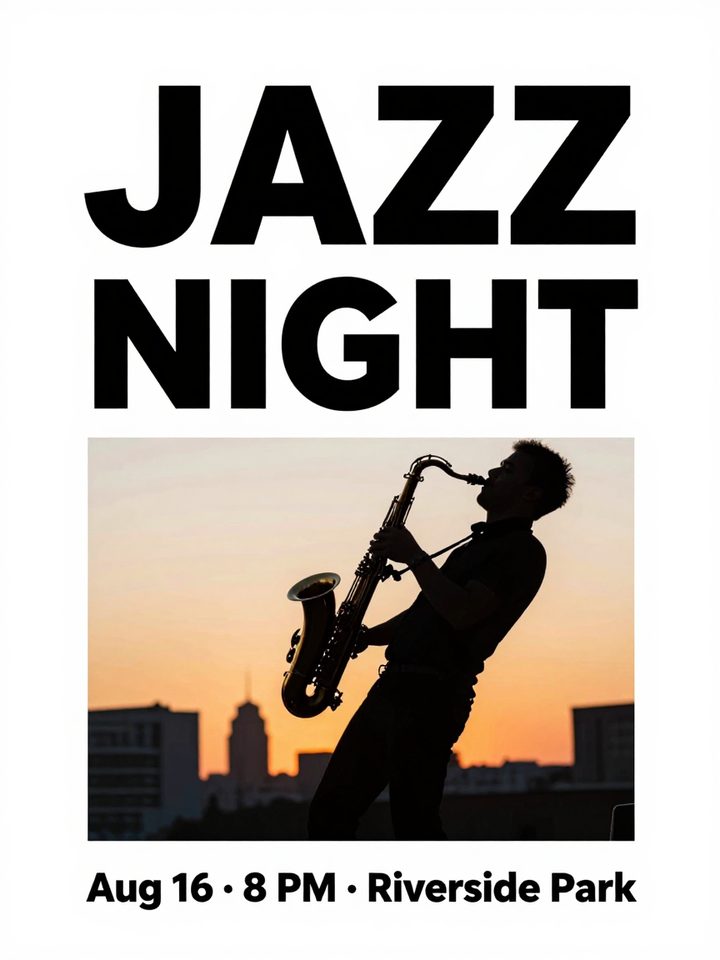
AI Poster Maker
Describe what the poster is for, add your headline, and get a finished design to share or print.
AI Sticker Maker
Upload a photo of yourself or your pet and turn it into a cute, chibi or emoji-style sticker with a white die-cut outline.
AI Avatar Maker
Turn a photo of yourself into a cartoon, pixel art or clay avatar for your profile picture.
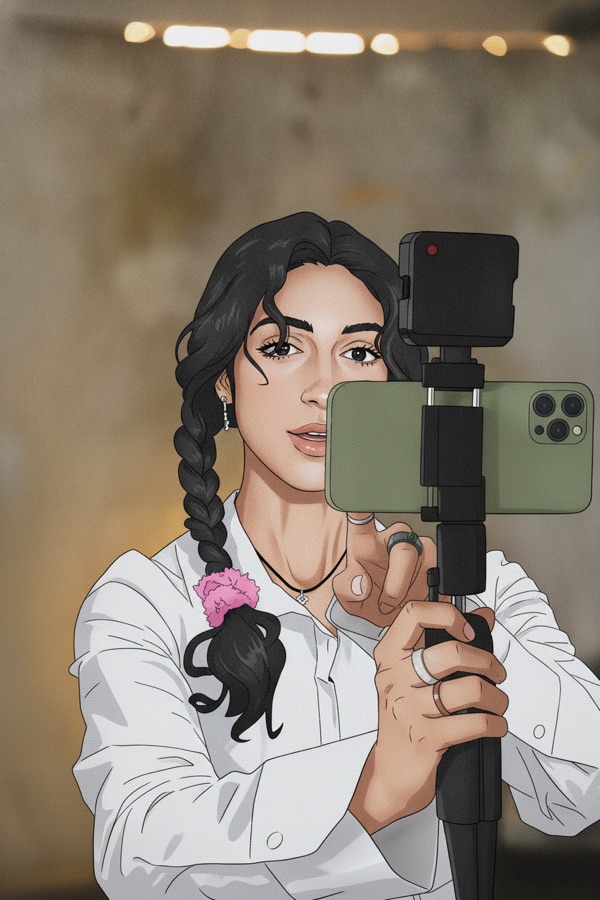
Photo to Anime
Upload a photo and redraw it as anime, manga or a 3D cartoon, keeping the pose, outfit and composition of the original.
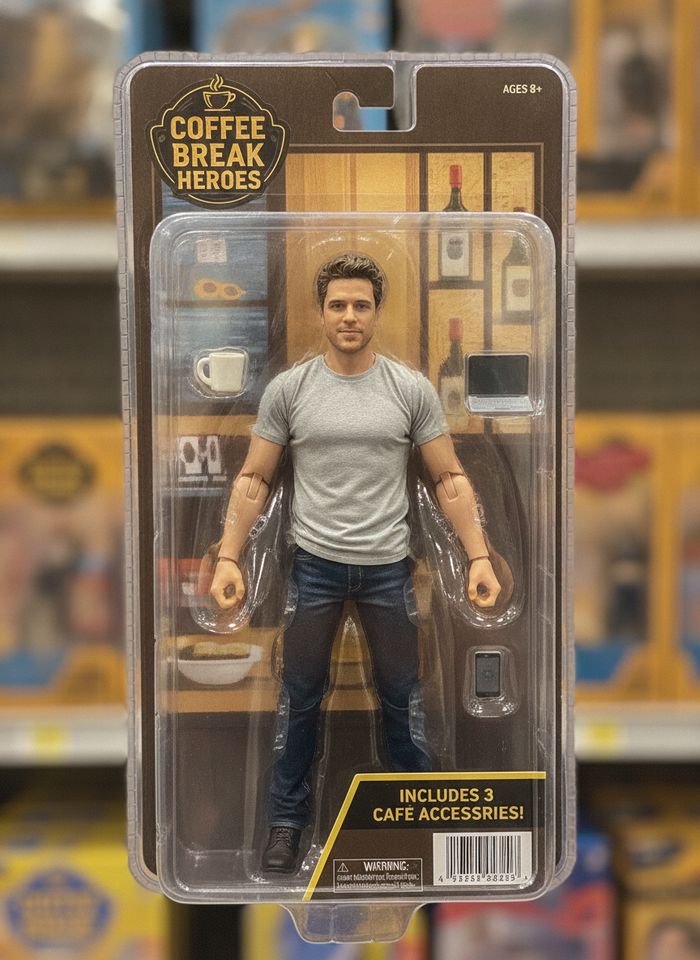
AI Action Figure Generator
Upload a photo of a person or a pet and see it as a collectible toy figure: boxed with accessories, posed on a desk, or as a cute blind-box vinyl figure.