AI Sticker Maker
Upload a photo of yourself or your pet and turn it into a cute, chibi or emoji-style sticker with a white die-cut outline.
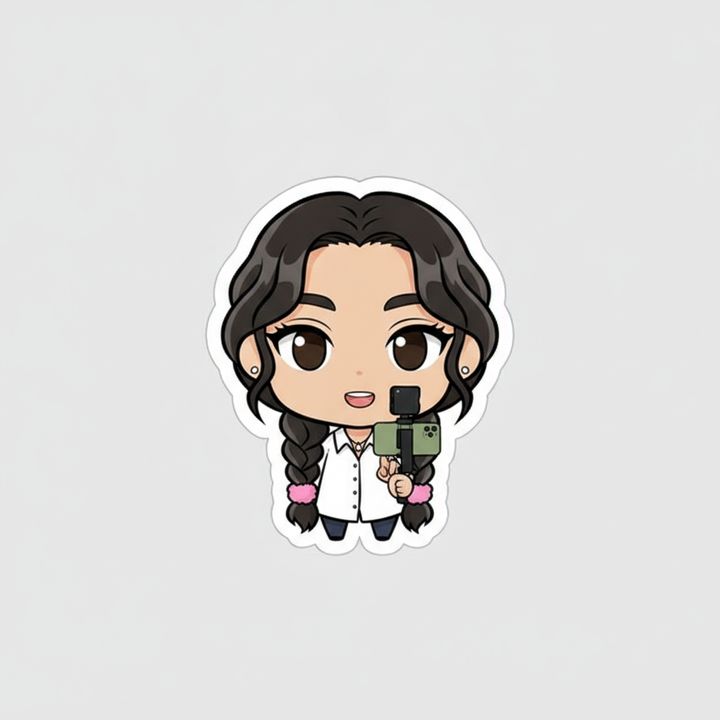
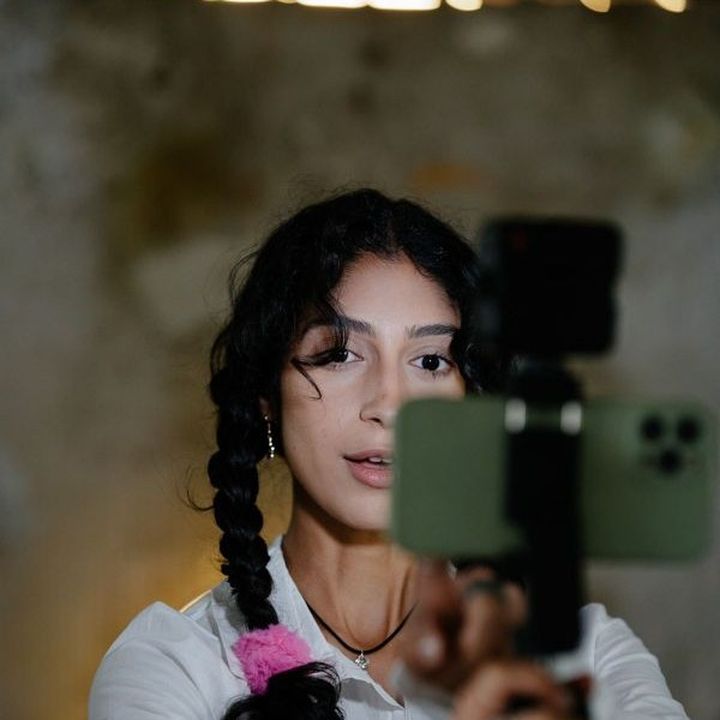 BeforeAfter
How to make a sticker from a photo
- 1
Upload a clear photo of a person or a pet with the face visible.
- 2
Pick cute, chibi or emoji, and add a pose or expression if you like.
- 3
Download your sticker and send it in your chats.
Your photo as a sticker
This AI sticker maker turns a photo of a person or a pet into a single cartoon sticker with a thick white die-cut outline. Choose cute for a soft, rounded cartoon look, chibi for a small body and a big head, or emoji for a simple, bold face with a big expression, like a chat emoji. The AI is instructed to keep the hairstyle, glasses, fur colors and other features that make the subject recognizable. Use the extra instructions to set the pose or mood, such as “waving, saying hi” or “thumbs up”. Each generation makes one sticker on a plain background. It is not a transparent file or a full sticker pack, so make one sticker per expression.
What this AI sticker maker does well
A die-cut look
Every sticker gets a thick white outline around the character, like a printed die-cut sticker, so it stays easy to read at the small size of a chat.
Set the expression with words
Type a pose or reaction such as “thumbs up”, “sleepy” or “saying thank you”, and the character is drawn doing it in the style you picked.
People and pets
Turn a selfie, a friend who has agreed, or your cat or dog into a sticker. The tool is instructed to keep hairstyles, glasses, fur colors and markings.
Three styles to compare
Cute gives a soft cartoon, chibi gives a tiny body with a big head, and emoji gives a simple, bold face. Try all three on one photo and compare.
Ways to use your custom stickers
WhatsApp, WeChat and Telegram chats
Send a sticker of yourself saying hi, thanks or good night. Share it as an image, or save it to your stickers where your chat app allows it.
Pet stickers
Make your dog or cat into stickers for the family group chat, with poses like begging for treats or sleeping, ready whenever your pet comes up.
Printed stickers and labels
Use the design for laptop stickers, gift tags or party favors. Output is about 1024 pixels, which is fine for small printed stickers and labels.
Team and community reactions
With their consent, make reaction stickers of teammates or friends for Slack, Discord or a group chat, for moments like approval, celebration or coffee time.
Tips for better AI stickers
Use a photo where the face is close, sharp and well lit. Stickers are viewed small, so a clear face matters more than the background or the outfit.
Describe one pose or emotion per sticker, such as “waving” or “laughing”. To build a set, generate from the same photo several times with a different expression each time.
If you want words on the sticker, keep them to one or two short words like “Hi” or “Thanks”, and check the spelling. AI can misspell longer text.
The sticker sits on a plain background. If your chat app needs a transparent sticker, remove the background in a sticker app or image editor after you download it.
Simple, credit-based pricing
Every tool runs on the same credits. One image is 30 credits (60 with Nano Banana Pro), and failed generations are refunded.
Starter
For occasional images
- About 75 images per month
- About $0.13 per image
- 2,250 credits
- All 34 AI image tools
- Commercial use
- Failed generations refunded
Plus
For regular use
- About 150 images per month
- About $0.13 per image
- 4,500 credits
- All 34 AI image tools
- Commercial use
- Failed generations refunded
- Priority support
Business
For teams, agencies and high volume
- About 300 images per month
- About $0.13 per image
- 9,000 credits
- All 34 AI image tools
- Commercial use
- Failed generations refunded
- Dedicated support
Monthly and yearly plans renew automatically at the end of each period until you cancel, and you can cancel anytime in Settings. Credit packs are one-time purchases that never renew; their credits last 1 year. Prices include tax.
AI sticker maker FAQ
- Which photos make the best stickers?
- A sharp, well-lit photo of one person or pet with the face clearly visible and not too small. Upload a JPG, PNG or WebP up to 10MB. Simple backgrounds help, and group photos are harder to turn into one clean sticker.
- Do I get a transparent file?
- No. You get one sticker with a white die-cut outline on a plain, solid background, at about 1024 pixels. If you need transparency, remove the background with a sticker app or an image editor after downloading.
- Can I make a whole sticker pack at once?
- Each generation makes one sticker. To build a pack, use the same photo and style several times with a different pose or expression in the instructions, such as “thumbs up”, “sleepy” or “saying thank you”.
- Can I use the stickers on WhatsApp or WeChat?
- You can send the sticker as an image in any chat, and in WeChat you can add a received image to your saved stickers. WhatsApp and Telegram sticker packs usually need a transparent background, so you may need to edit the file first.
- Can I make a sticker of a friend?
- Only with their permission. Before you upload, you confirm that the photo is of you or that everyone in it has agreed. Please don't make stickers that mock or embarrass someone.
- Will the sticker still look like me?
- The tool is instructed to keep your hairstyle, glasses, face shape and other recognizable features. Chibi and emoji styles simplify faces more than cute does, so if the likeness is off, try another photo or style.
- Can I sell or print the stickers?
- Results can be used commercially, subject to our terms. Only use other people's likeness with their permission. For printing, the roughly 1024-pixel output suits small stickers and labels better than large prints.
- How much does each sticker cost?
- Each sticker costs 30 credits, shown on the Generate button, and failed generations are refunded automatically. Stickers are made with Google's Nano Banana model. Uploads are moderated and deleted from the processing service within 24 hours.
Related guides
BlogChoosing an Image Size and Aspect Ratio
Which aspect ratio to generate for where the image will be used: 1:1, 3:4, 4:3, 9:16 or 16:9, what a 1K image is good for, and how to avoid cropping later.
Text to Image vs Image to Image: When to Use Which
Text to image starts from words; image to image starts from a picture you already have. How the two differ here, when each one fits, and how to use them together.
More AI tools
All tools
Text to Image
Describe what you want, choose a model, and turn your text into a 1K image.
Image to Image
Upload one to four images, describe what you want, and get a new 1K image built from them.
AI Style Transfer
Redraw any photo as a watercolor, oil painting, pencil sketch, pixel art, pop art or ukiyo-e print, keeping the subject and composition.
AI Logo Maker
Type your brand name and what you do, and get logo ideas in the style you pick.
AI Poster Maker
Describe what the poster is for, add your headline, and get a finished design to share or print.
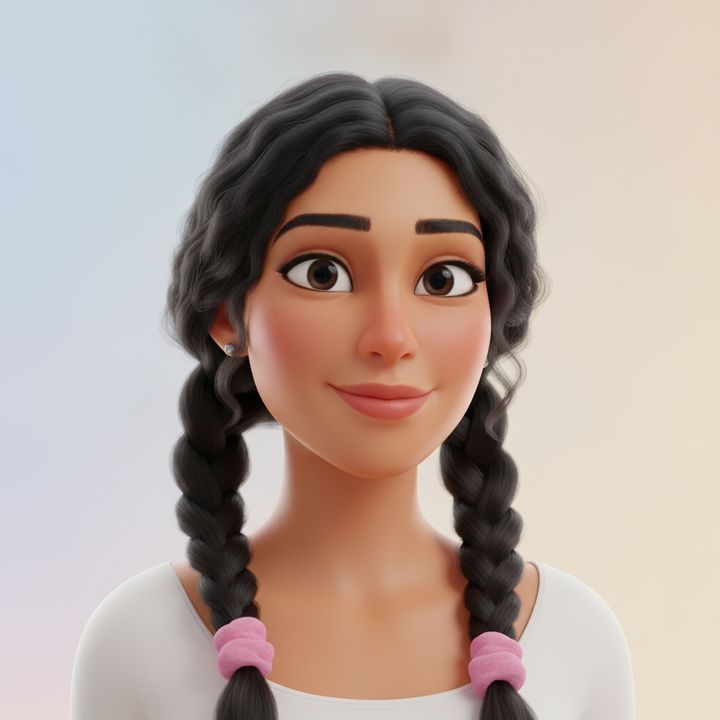
AI Avatar Maker
Turn a photo of yourself into a cartoon, pixel art or clay avatar for your profile picture.
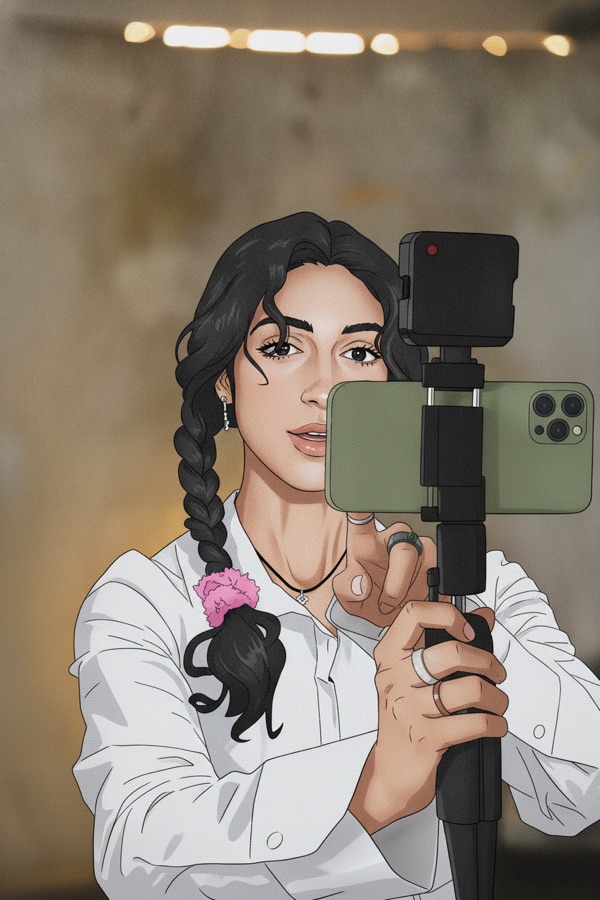
Photo to Anime
Upload a photo and redraw it as anime, manga or a 3D cartoon, keeping the pose, outfit and composition of the original.
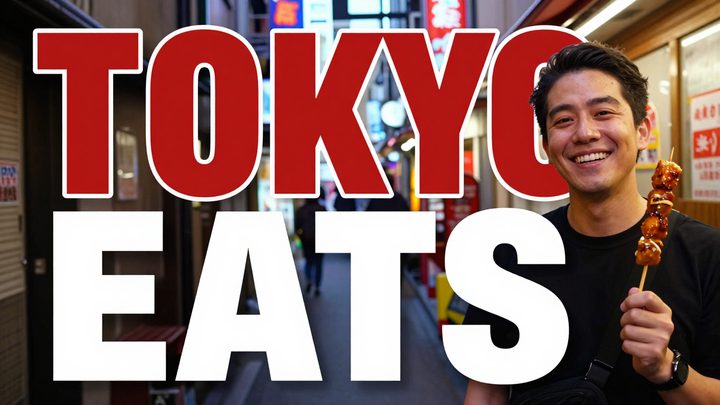
AI Thumbnail Maker
Type your video topic and title, and get a thumbnail with your title in big, readable text.
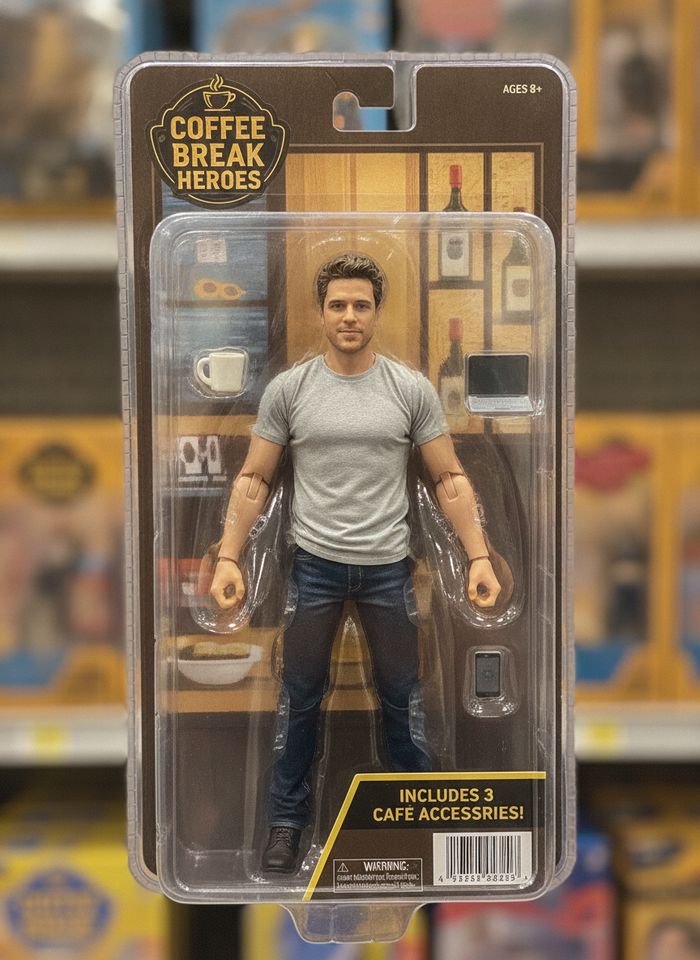
AI Action Figure Generator
Upload a photo of a person or a pet and see it as a collectible toy figure: boxed with accessories, posed on a desk, or as a cute blind-box vinyl figure.