
Unblur Blurry Photos with AI
Upload a soft, blurry or grainy photo, old or new, and get a sharper version with clearer faces and better color.
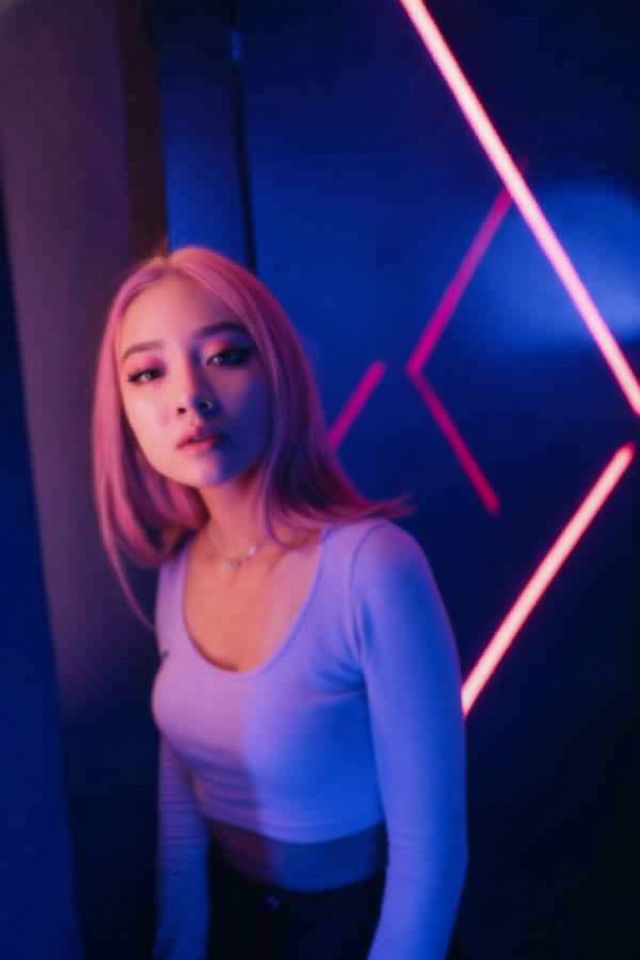
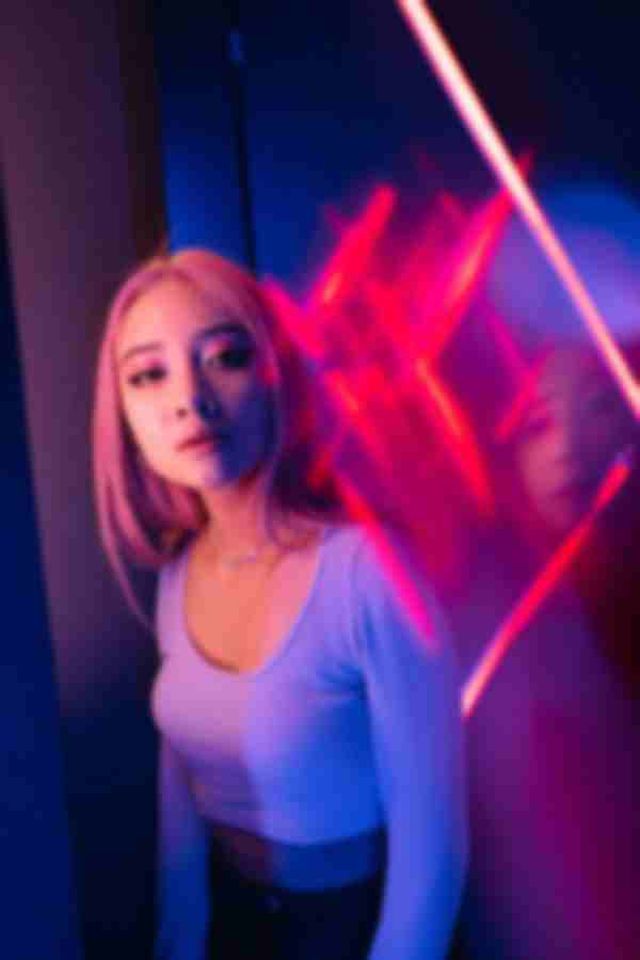 BeforeAfter
How to enhance a photo with AI
- 1
Upload the blurry, noisy or dull photo you want to fix.
- 2
Generate the enhanced version. There are no settings to adjust.
- 3
Compare it with your original and download the clearer photo.
Make blurry photos clear again
An AI photo enhancer is the quickest way to rescue a picture that came out soft, grainy or dull. Upload the photo and the AI removes motion and focus blur, cleans up noise from low light, sharpens faces, hair, text and edges, and improves contrast and color. It is instructed to keep the content as it is: the same people, expressions, objects and composition, with nothing added. This is not an upscaler. Results come out at standard 1K resolution, about 1024 pixels on the long side, so the goal is a clearer picture, not a bigger file. It works well for phone snapshots, photos saved from chat apps and portraits you want to share.
What the AI photo enhancer fixes
Blur and noise in one pass
Camera shake, missed focus and grain from dim rooms are handled together. You don't need to work out which problem a photo has before you upload it.
Clearer faces
Eyes, eyebrows, hair and skin get extra attention, so portraits look sharper. The tool is instructed to keep each person's features and expression as they are.
Better clarity and color
Washed-out, hazy or slightly dull photos get cleaner contrast and more natural color, without heavy filters that change the mood of the picture.
Content left as it is
The enhancer doesn't add objects, change backgrounds or restyle the scene. It works on the picture you uploaded, so the result is the same moment, only clearer.
When to use a photo enhancer
Shaky phone photos
Fix the one shot of a birthday, a concert or a pet that came out slightly blurry because someone moved or the camera focused on the wrong spot.
Low-light pictures
Clean up grainy photos taken indoors, at night or in a dim restaurant, where your phone raised the sensitivity and left visible noise behind.
Compressed images from chats
Improve photos that lost detail after being forwarded through messaging apps or saved from social media, so faces and text are easier to make out.
Portraits and profile pictures
Sharpen a portrait you like that is a little soft, before you use it as a profile picture or share it with family and friends.
Tips to unblur photos with better results
Upload the best copy you have. The original file from your phone or camera holds more detail than a screenshot or a version sent through a chat app.
Crop out what you don't need before uploading. When the subject fills more of the frame, faces and small details get more of the 1K output.
Expect the most help with mild to moderate blur. When a face is only a smear of pixels, the AI has to guess, so check eyes, teeth and hands closely.
For old prints with scratches, tears or creases, use Scratch & Tear Repair instead. It repairs that damage as well as making the picture clearer.
Simple, credit-based pricing
Every tool runs on the same credits. One image is 30 credits (60 with Nano Banana Pro), and failed generations are refunded.
Starter
For occasional images
- About 75 images per month
- About $0.13 per image
- 2,250 credits
- All 34 AI image tools
- Commercial use
- Failed generations refunded
Plus
For regular use
- About 150 images per month
- About $0.13 per image
- 4,500 credits
- All 34 AI image tools
- Commercial use
- Failed generations refunded
- Priority support
Business
For teams, agencies and high volume
- About 300 images per month
- About $0.13 per image
- 9,000 credits
- All 34 AI image tools
- Commercial use
- Failed generations refunded
- Dedicated support
Monthly and yearly plans renew automatically at the end of each period until you cancel, and you can cancel anytime in Settings. Credit packs are one-time purchases that never renew; their credits last 1 year. Prices include tax.
AI photo enhancer FAQ
- What kind of photos can it fix?
- Photos with mild to moderate blur from camera shake or missed focus, noise from low light, compression artifacts, and dull or hazy color. Very blurry or tiny images can be improved, but the AI has to guess more of the detail.
- Does it upscale my photo to a higher resolution?
- No. This is not an upscaler. Results come out at standard 1K resolution, about 1024 pixels on the long side. The aim is a clearer, sharper picture at that size, not a larger file for big prints.
- Will it change faces or other details?
- The tool is instructed to keep the same people, expressions and content. When a face is very blurry, though, the AI fills in detail it can't see, so compare the result with your original before you share it.
- Can it fix a photo that is completely out of focus?
- It can often make it look much better, but when shapes are barely visible, the sharpened detail is the AI's best guess rather than what was really there. Check faces, text and fine patterns carefully.
- Should I use this or Scratch & Tear Repair?
- Use this tool for photos that are blurry, noisy or dull. Use Scratch & Tear Repair for scanned prints with scratches, stains, tears or creases, since it repairs that damage and can also add color.
- Can it make text in a photo readable?
- It can sharpen signs, labels and documents that are slightly blurry. Letters that are unreadable in the original may come out wrong, so don't rely on the result for names, numbers or anything official.
- Are my photos private?
- Your photo is only used to create your result. Uploaded originals are deleted from the processing service within 24 hours, and the enhanced photo is saved in My Images. Uploads and results are moderated.
- How much does it cost to enhance a photo?
- Each enhanced photo costs 30 credits. If a generation fails, the credits are refunded automatically. Uploads can be JPG, PNG or WebP up to 10MB, and results can be used commercially, subject to the terms.
Related guides
BlogText to Image vs Image to Image: When to Use Which
Text to image starts from words; image to image starts from a picture you already have. How the two differ here, when each one fits, and how to use them together.
How to Write an Image Prompt That Works
A four-part way to write prompts for an AI image generator: subject, style, lighting and composition, with five example prompts to copy and change.
Choosing an Image Size and Aspect Ratio
Which aspect ratio to generate for where the image will be used: 1:1, 3:4, 4:3, 9:16 or 16:9, what a 1K image is good for, and how to avoid cropping later.
More AI tools
All tools
Text to Image
Describe what you want, choose a model, and turn your text into a 1K image.
Image to Image
Upload one to four images, describe what you want, and get a new 1K image built from them.
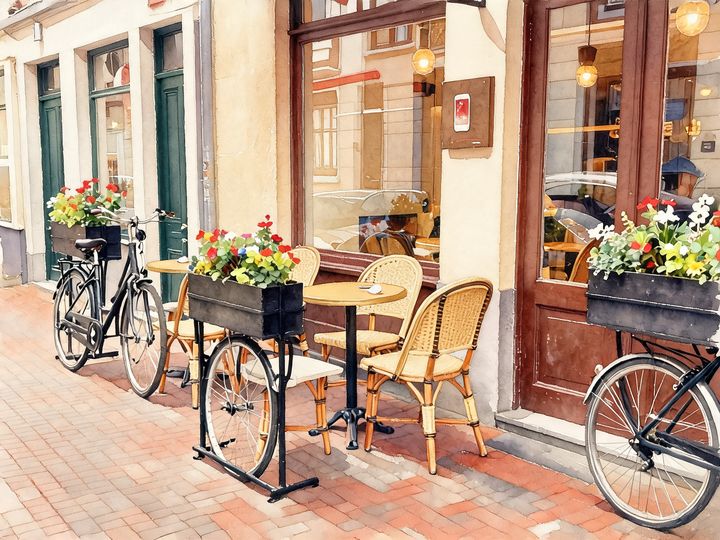
AI Style Transfer
Redraw any photo as a watercolor, oil painting, pencil sketch, pixel art, pop art or ukiyo-e print, keeping the subject and composition.
AI Logo Maker
Type your brand name and what you do, and get logo ideas in the style you pick.
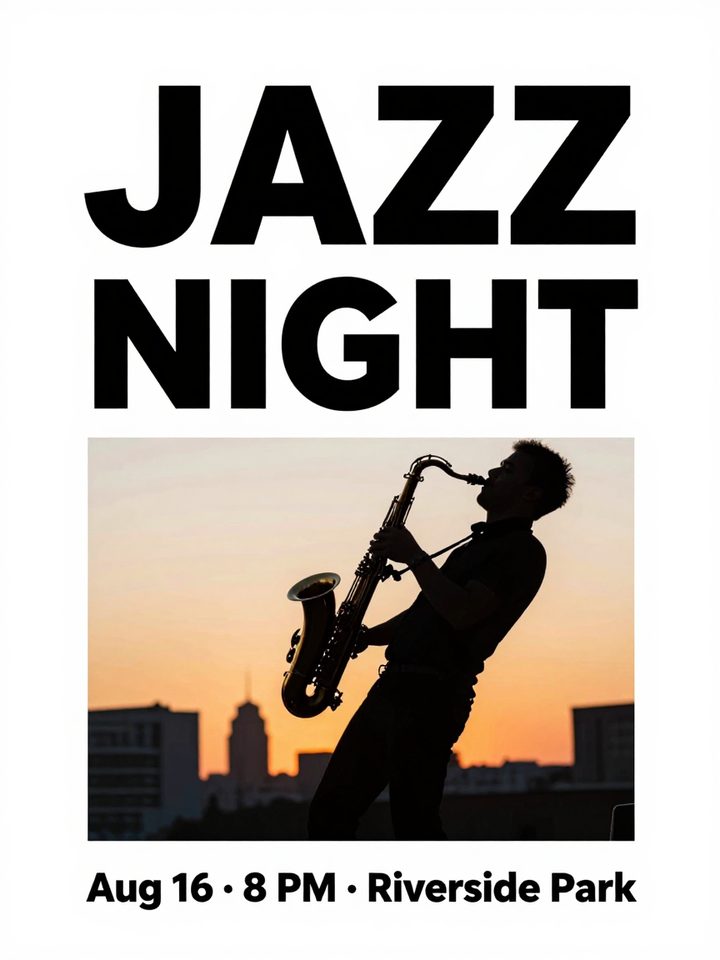
AI Poster Maker
Describe what the poster is for, add your headline, and get a finished design to share or print.
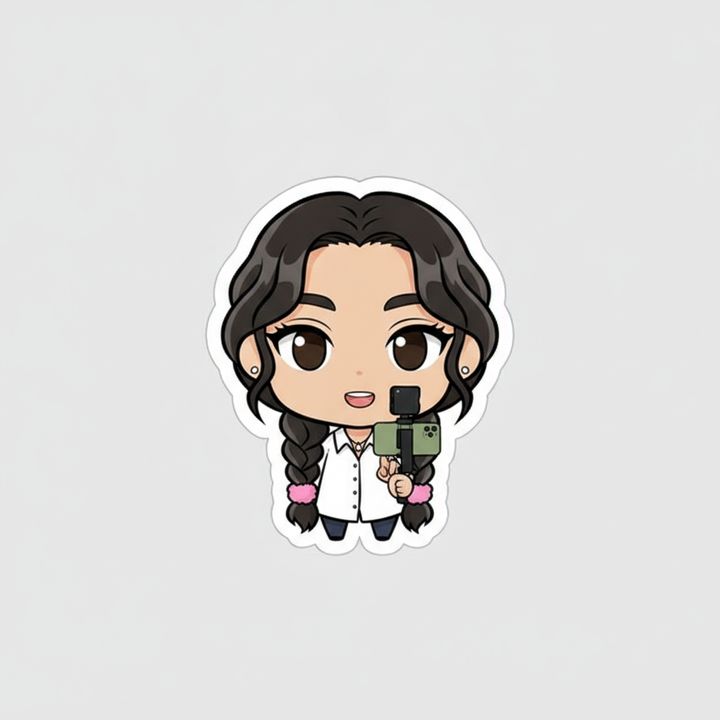
AI Sticker Maker
Upload a photo of yourself or your pet and turn it into a cute, chibi or emoji-style sticker with a white die-cut outline.
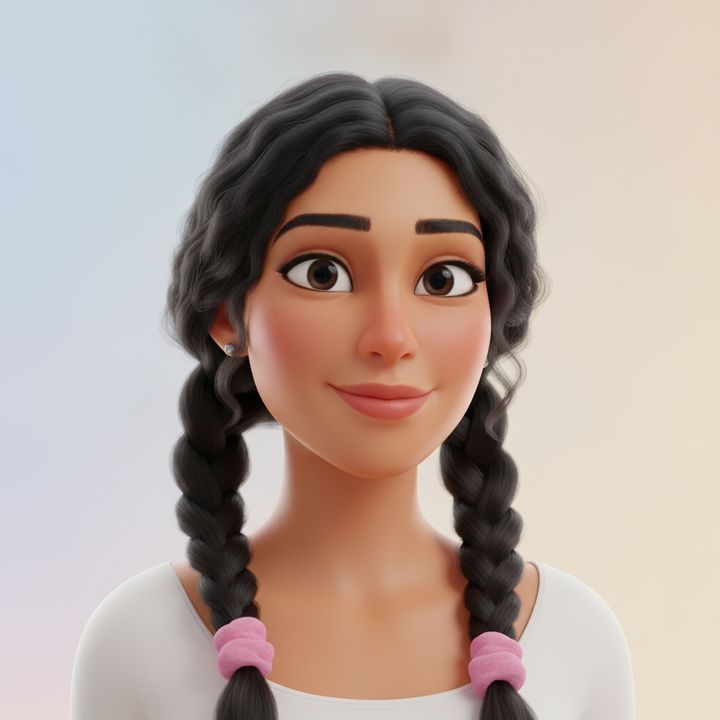
AI Avatar Maker
Turn a photo of yourself into a cartoon, pixel art or clay avatar for your profile picture.
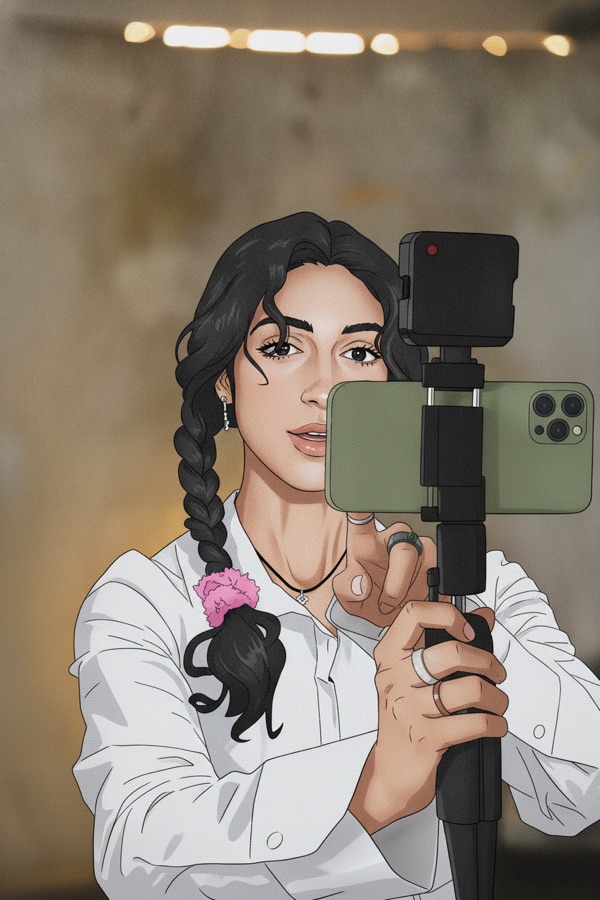
Photo to Anime
Upload a photo and redraw it as anime, manga or a 3D cartoon, keeping the pose, outfit and composition of the original.
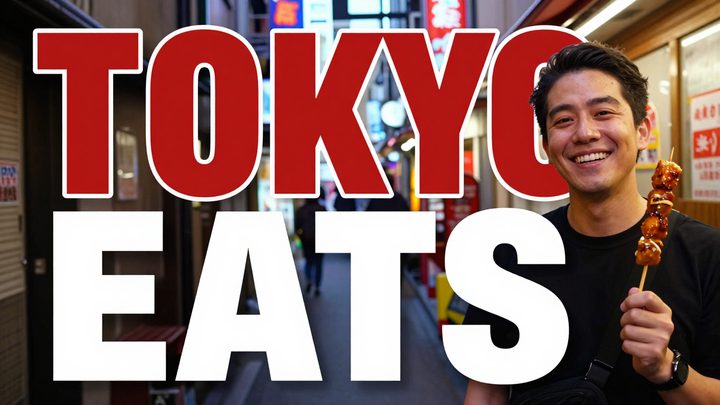
AI Thumbnail Maker
Type your video topic and title, and get a thumbnail with your title in big, readable text.