AI Pet Portrait
Upload a photo of your dog, cat or other pet and turn it into a royal portrait, a watercolor, a cartoon or an oil painting.
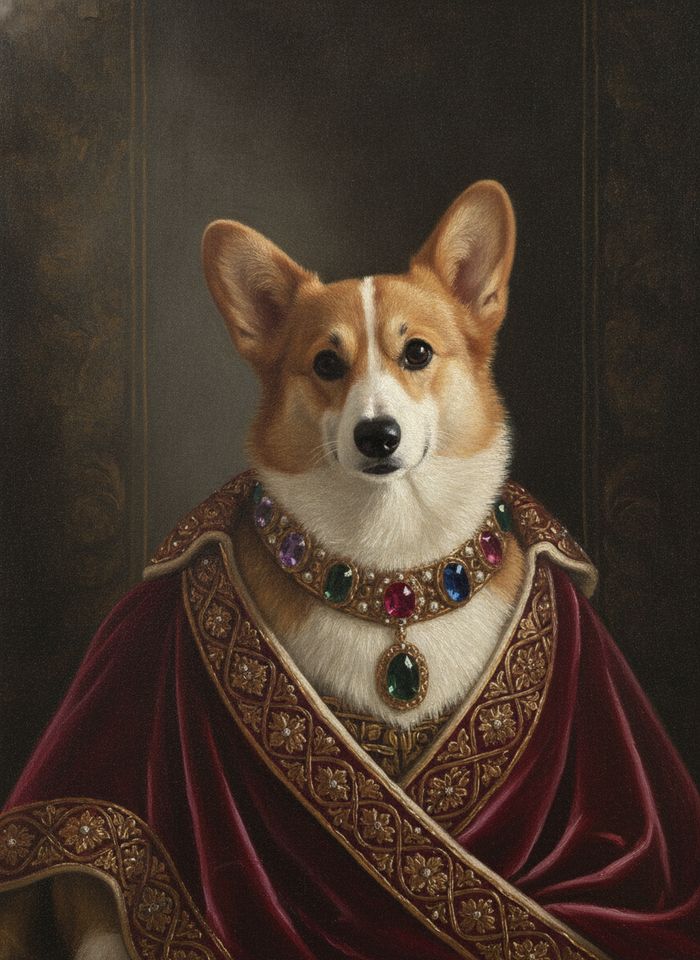
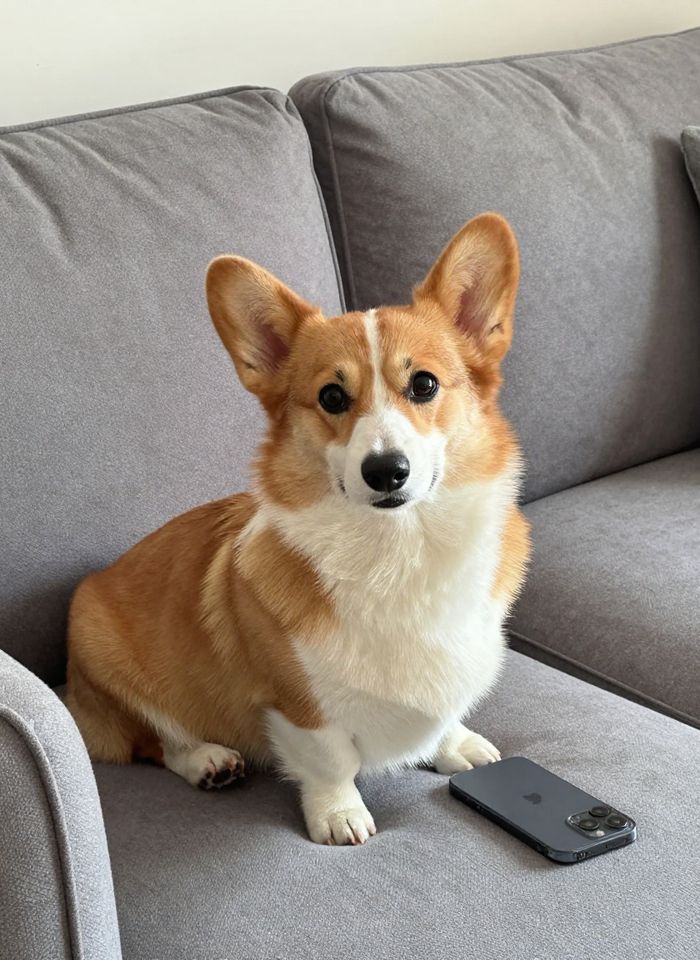 BeforeAfter
How to make a pet portrait from a photo
- 1
Upload a clear photo of your pet with its face and markings visible.
- 2
Pick royal, watercolor, cartoon or oil and, if you like, add a detail.
- 3
Download the portrait or try the same photo in another style.
Your pet, painted
This AI pet portrait tool turns a photo of your dog, cat, rabbit or other pet into a painted portrait. Pick the royal style to dress your pet in a noble outfit like a Renaissance painting, a loose watercolor on paper, a bright cartoon, or a classic oil painting with visible brushwork. The AI is instructed to keep the breed, fur colors, markings and eye color, so the portrait looks like your pet and not a generic animal. Check the result for small details like a white patch or a folded ear, and try again if something is missing. Add a note such as “gold crown and red cushion” to change the props or the background.
What this AI pet portrait maker does well
Keeps your pet's markings
The tool is instructed to keep the breed, fur colors, patches, ear shape and eye color, so the portrait shows your pet, not just any dog or cat.
Four looks from one photo
Try a royal Renaissance portrait, a soft watercolor, a playful cartoon and a classic oil painting on the same photo, then keep the one that fits your pet.
Royal outfits and props
The royal style adds noble clothing, a dark painted background and gilded details, and you can ask for extras like a crown, a ruff collar or a velvet cushion.
Any pet with a clear face
Dogs and cats work well, and so do rabbits, birds, hamsters and horses, as long as the photo shows the face and the coat clearly and in good light.
Ways to use your pet portrait
Gifts for pet lovers
Make a portrait of a friend's dog or cat for a birthday, a holiday card or a housewarming gift, in a style that matches the pet's personality.
Memorial portraits
Remember a pet that has passed away with a gentle watercolor or oil portrait made from a favorite photo, to keep and to share with your family.
Wallpapers and posts
Turn your pet into a royal portrait for your phone wallpaper, a social post, or a profile picture for the pet's own Instagram account.
Cards and small prints
Use the portrait on greeting cards, in a desk frame or as a small print. Output is about 1024 pixels, so very large prints may look soft.
Tips for a better pet portrait
Take the photo at your pet's eye level, in daylight, with the face in sharp focus. Eyes and a nose that are clear in the photo come out better in the painting.
Choose a photo where distinctive markings are visible, like a white blaze or one dark ear. Markings hidden in the photo can't be kept, and the AI may guess wrong.
For the most accurate result, use one pet per photo. With two or more animals, features can get mixed up, so make a separate portrait of each pet.
Keep extra instructions to one or two props, such as “blue velvet cape” or “sunflowers in the background”. Too many changes pull attention away from your pet.
Simple, credit-based pricing
Every tool runs on the same credits. One image is 30 credits (60 with Nano Banana Pro), and failed generations are refunded.
Starter
For occasional images
- About 75 images per month
- About $0.13 per image
- 2,250 credits
- All 34 AI image tools
- Commercial use
- Failed generations refunded
Plus
For regular use
- About 150 images per month
- About $0.13 per image
- 4,500 credits
- All 34 AI image tools
- Commercial use
- Failed generations refunded
- Priority support
Business
For teams, agencies and high volume
- About 300 images per month
- About $0.13 per image
- 9,000 credits
- All 34 AI image tools
- Commercial use
- Failed generations refunded
- Dedicated support
Monthly and yearly plans renew automatically at the end of each period until you cancel, and you can cancel anytime in Settings. Credit packs are one-time purchases that never renew; their credits last 1 year. Prices include tax.
AI pet portrait FAQ
- Which pet photos work best?
- A sharp, well-lit close-up where your pet's face and coat are clearly visible, ideally taken at eye level. Upload a JPG, PNG or WebP up to 10MB. Avoid blurry action shots, heavy filters and photos where the pet is tiny in the frame.
- Will the portrait look like my pet?
- The tool is instructed to keep the breed, fur colors, markings and eye color. Painted styles simplify some details, and the cartoon style changes proportions the most. Check the result and try another photo if a marking is missing.
- What does the royal style look like?
- It paints your pet like a noble in a Renaissance portrait, usually with a rich outfit, a dark background and gold details. Add instructions such as “crown and ermine cape” or “military uniform” to change the costume.
- Can I put two pets in one portrait?
- You can try with a photo that shows both pets clearly, but their features are more likely to get mixed up. For the most faithful result, make a portrait of each pet from its own photo.
- Can I print my pet portrait?
- Yes, at small sizes. Output is standard resolution, about 1024 pixels, which suits cards, small frames, screens and social posts. Large canvas prints may look soft, since this tool doesn't upscale.
- Can I use the portrait commercially?
- Results can be used commercially, subject to our terms. If you make portraits of other people's pets to sell, use photos you have permission to use, and check each portrait before you deliver it.
- How much does a pet portrait cost?
- Each portrait costs 30 credits, shown on the Generate button. If a generation fails, the credits are refunded automatically, and every portrait you make is saved in My Images.
- How is my photo processed?
- Portraits are made with Google's Nano Banana model through its API. We are an independent service, not affiliated with Google. Uploads and prompts are moderated, and your original is deleted from the processing service within 24 hours.
Related guides
BlogText to Image vs Image to Image: When to Use Which
Text to image starts from words; image to image starts from a picture you already have. How the two differ here, when each one fits, and how to use them together.
How to Write an Image Prompt That Works
A four-part way to write prompts for an AI image generator: subject, style, lighting and composition, with five example prompts to copy and change.
Choosing an Image Size and Aspect Ratio
Which aspect ratio to generate for where the image will be used: 1:1, 3:4, 4:3, 9:16 or 16:9, what a 1K image is good for, and how to avoid cropping later.
More AI tools
All tools
Text to Image
Describe what you want, choose a model, and turn your text into a 1K image.
Image to Image
Upload one to four images, describe what you want, and get a new 1K image built from them.
AI Style Transfer
Redraw any photo as a watercolor, oil painting, pencil sketch, pixel art, pop art or ukiyo-e print, keeping the subject and composition.
AI Logo Maker
Type your brand name and what you do, and get logo ideas in the style you pick.
AI Poster Maker
Describe what the poster is for, add your headline, and get a finished design to share or print.
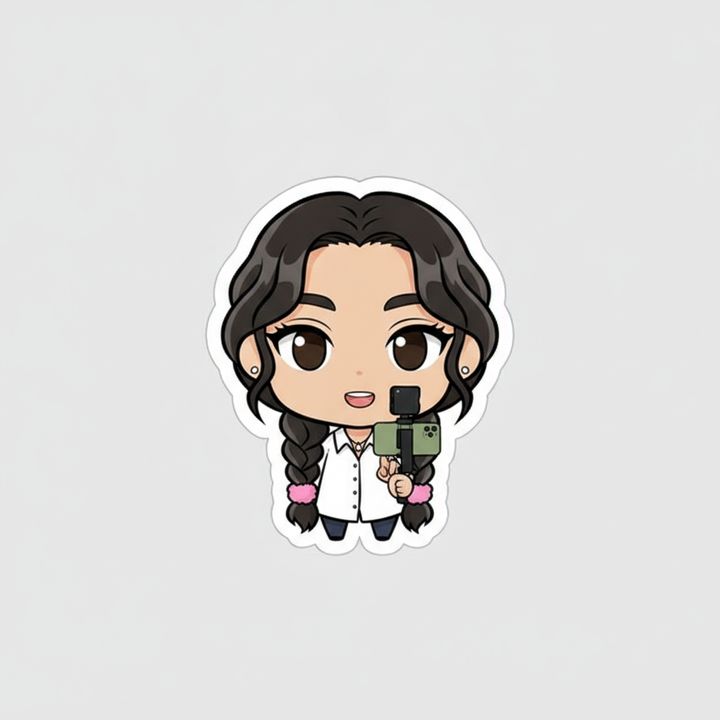
AI Sticker Maker
Upload a photo of yourself or your pet and turn it into a cute, chibi or emoji-style sticker with a white die-cut outline.
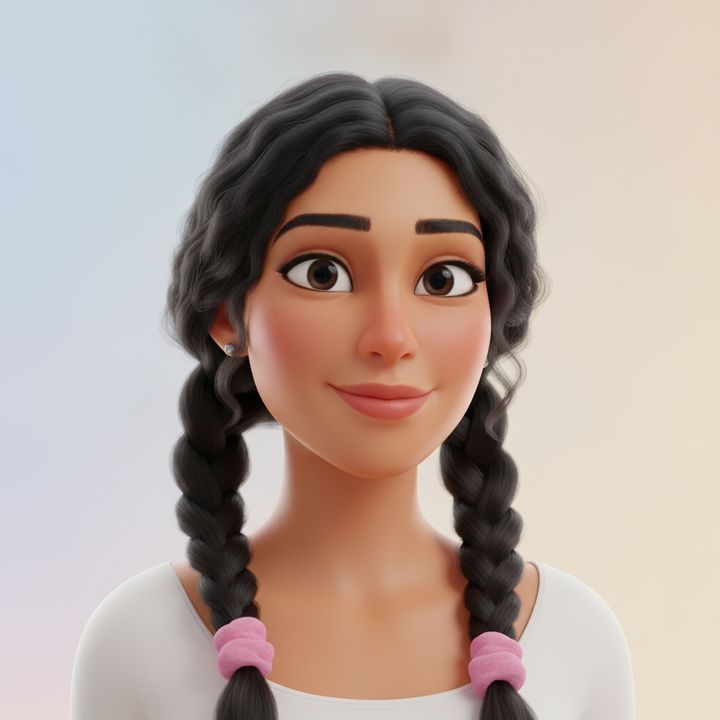
AI Avatar Maker
Turn a photo of yourself into a cartoon, pixel art or clay avatar for your profile picture.
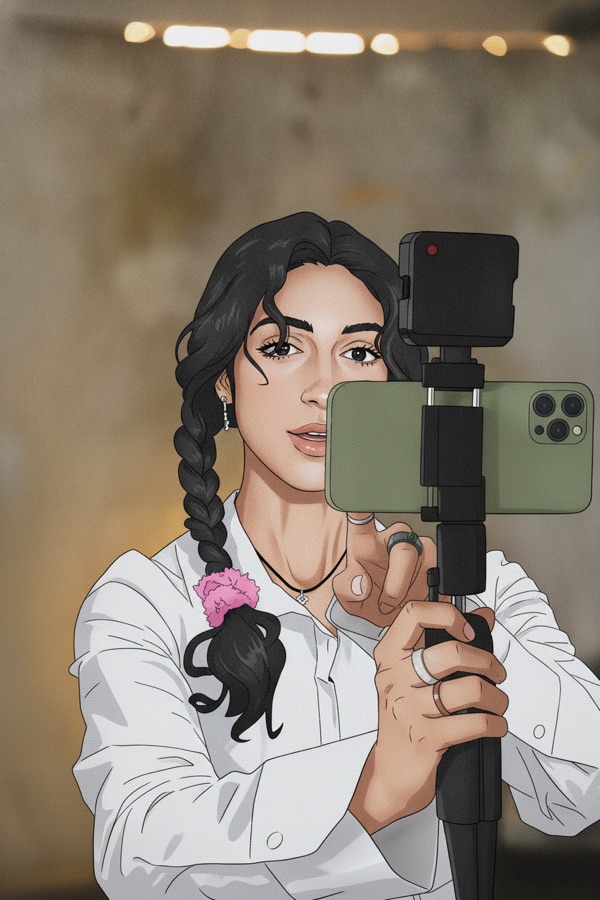
Photo to Anime
Upload a photo and redraw it as anime, manga or a 3D cartoon, keeping the pose, outfit and composition of the original.
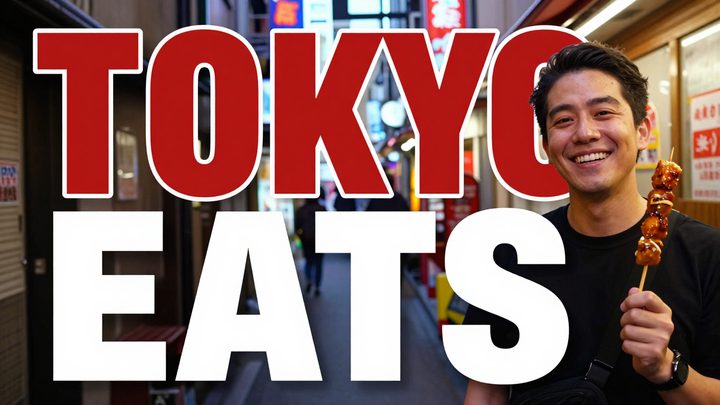
AI Thumbnail Maker
Type your video topic and title, and get a thumbnail with your title in big, readable text.