
AI Line Art Colorizer
Upload black-and-white line art or a manga page and get it back in color, with your lines kept in place.
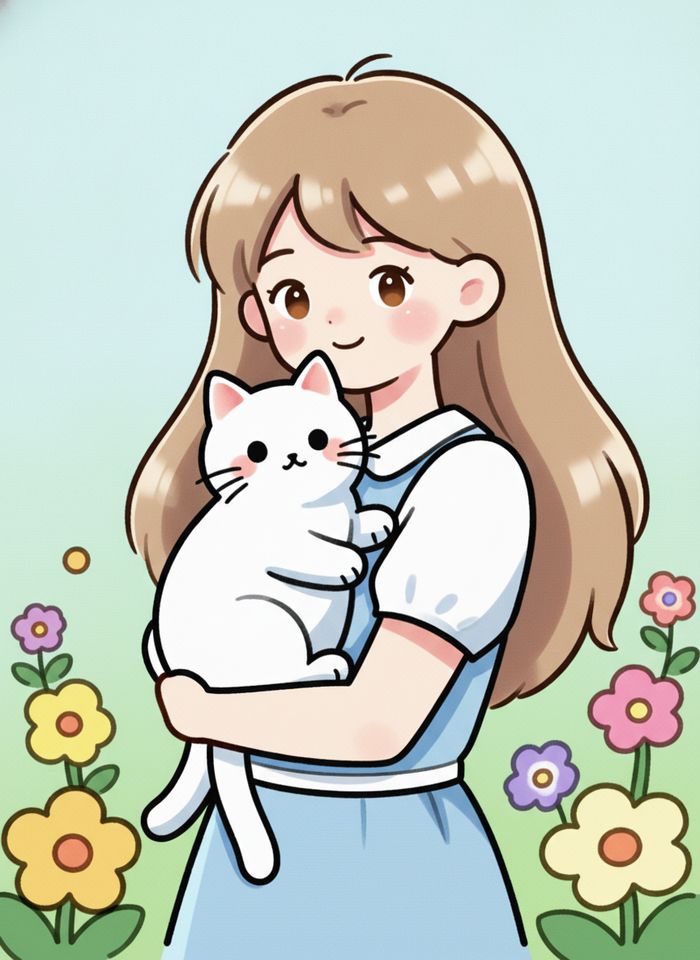
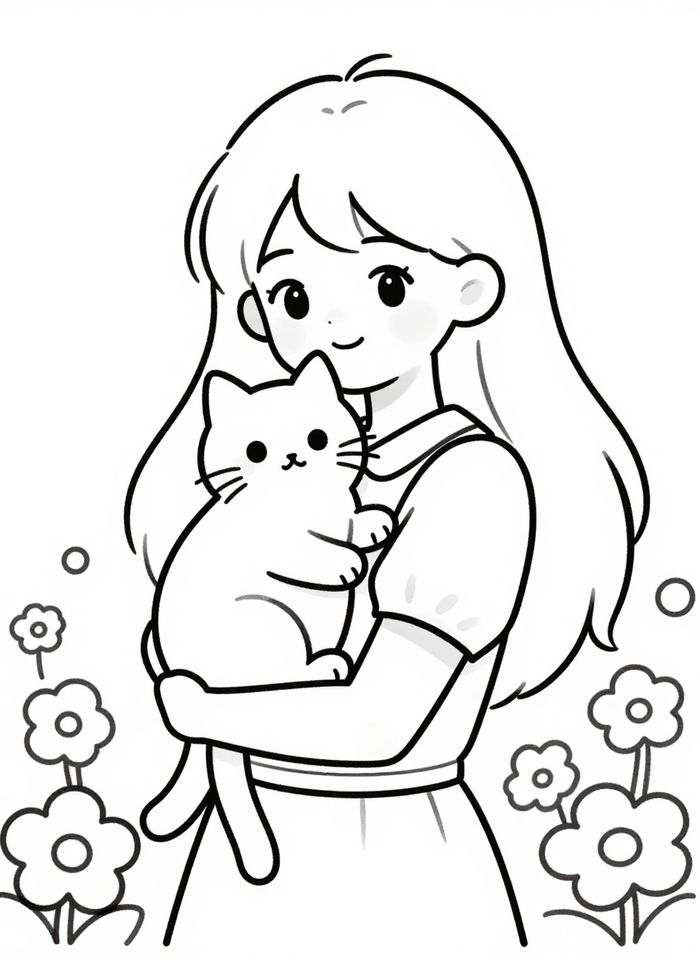 BeforeAfter
How to color line art with AI
- 1
Upload a clean scan or photo of your line art or manga page.
- 2
Pick anime, watercolor or flat color, and add color notes if you want.
- 3
Download the colored image and check the lines and fills.
Color your drawings, keep your lines
An AI line art colorizer turns a black-and-white drawing into a colored image. Upload a pencil sketch, inked line art, a coloring page or a manga page, then choose a style: anime cel shading, soft watercolor, or flat color with no shading. The tool is instructed to keep your lines and composition as they are and only add color, light and shadow. If you have already decided some colors, such as a character's pink hair or a red scarf, write them in the prompt box and the AI will follow them. It picks the rest. Use it to try color schemes before you paint, to color a drawing or a manga page faster, or to finish an old sketch. Check small areas and hands in the result.
What the AI line art colorizer does well
Your lines stay in place
The tool is instructed to keep your linework and composition and only add color, so the drawing still looks like yours. Zoom in and check fine lines before you use it.
Three coloring styles
Choose anime cel shading with crisp shadows, soft watercolor washes, or flat color with no shading. Run the same drawing in each style and compare them side by side.
Follows your color notes
Write the colors you have already decided, like “her hair is pink, the coat is navy,” and the AI uses them. Anything you leave out gets a color that fits the style.
Works on sketches and manga pages
Upload a single character, a full illustration or a manga page with several panels. Clean, closed lines give the most even fills, while rough sketches leave more to the AI.
Ways to use line art coloring
Try color schemes fast
Test different palettes for a character or a scene before you spend hours painting. Run the same sketch in several styles and pick the version you like best.
Your own manga and comics
Color your own black-and-white manga or comic pages to see how they would look in color, or make a color preview to share on social media.
Coloring pages and kids' drawings
Scan a coloring book page or a drawing your child made and see it filled in with color. The result can also be a fun guide for coloring it by hand.
Old sketchbooks
Bring color to sketches that have sat in a notebook for years. A phone photo of the page works well as long as it is sharp and evenly lit.
Tips for coloring line art with AI
Use clean, dark lines on white paper. Erase pencil guidelines and smudges first, or the AI may treat them as part of the drawing and color them in.
Scan the page, or photograph it straight on in even daylight. Shadows and gray paper tones from a phone photo can turn into dirty patches in the colors.
Name the part and the color in each note, such as “eyes are green, dress is pale yellow.” Short notes for the main areas work better than a long description.
For a series of pages, reuse the same color notes for each character, so their hair, eyes and outfits stay consistent from one page to the next.
Simple, credit-based pricing
Every tool runs on the same credits. One image is 30 credits (60 with Nano Banana Pro), and failed generations are refunded.
Starter
For occasional images
- About 75 images per month
- About $0.13 per image
- 2,250 credits
- All 34 AI image tools
- Commercial use
- Failed generations refunded
Plus
For regular use
- About 150 images per month
- About $0.13 per image
- 4,500 credits
- All 34 AI image tools
- Commercial use
- Failed generations refunded
- Priority support
Business
For teams, agencies and high volume
- About 300 images per month
- About $0.13 per image
- 9,000 credits
- All 34 AI image tools
- Commercial use
- Failed generations refunded
- Dedicated support
Monthly and yearly plans renew automatically at the end of each period until you cancel, and you can cancel anytime in Settings. Credit packs are one-time purchases that never renew; their credits last 1 year. Prices include tax.
AI line art colorizer FAQ
- Will the AI change my lines?
- The tool is instructed to keep your lines and composition and only add color and shading. AI can still soften, thicken or redraw small details, so compare the result with your original before you use it.
- What kind of drawing works best?
- Clean black lines on a white background, scanned or photographed straight on. Pencil sketches work too, but faint or messy lines give the AI less to follow. Uploads can be JPG, PNG or WebP, up to 10MB.
- What is the difference between the three styles?
- Anime uses cel shading with clear shadow shapes, like a frame from a TV series. Watercolor uses soft washes and gentle blends. Flat color fills each area with a single color and little or no shading.
- Can I choose the colors?
- Yes. Write the colors you want in the prompt box, for example “her hair is pink, the cat is orange.” The AI follows your notes and picks colors that suit the chosen style for everything else.
- Can it color a whole manga page?
- Yes. Pages with several panels work, but busy pages with many small characters are harder, and a character may not keep the same colors in every panel. Color notes help keep them consistent.
- Is this the same as the AI Photo Colorizer?
- No. The AI Photo Colorizer is made for black-and-white photographs and adds realistic, natural color. This tool is made for drawings, sketches and manga, and colors them in an illustration style.
- How much does it cost, and can I use the result?
- Each image costs 30 credits, and failed generations are refunded automatically. Results are about 1024 px and saved in My Images. If you own the rights to the drawing, you can use the result commercially, subject to our terms.
- Are my drawings private?
- Your uploads are only used to create your result. Uploaded originals are deleted from the processing service within 24 hours. Prompts and images are moderated before anything is generated.
Related guides
BlogText to Image vs Image to Image: When to Use Which
Text to image starts from words; image to image starts from a picture you already have. How the two differ here, when each one fits, and how to use them together.
How to Write an Image Prompt That Works
A four-part way to write prompts for an AI image generator: subject, style, lighting and composition, with five example prompts to copy and change.
Choosing an Image Size and Aspect Ratio
Which aspect ratio to generate for where the image will be used: 1:1, 3:4, 4:3, 9:16 or 16:9, what a 1K image is good for, and how to avoid cropping later.
More AI tools
All tools
Text to Image
Describe what you want, choose a model, and turn your text into a 1K image.
Image to Image
Upload one to four images, describe what you want, and get a new 1K image built from them.
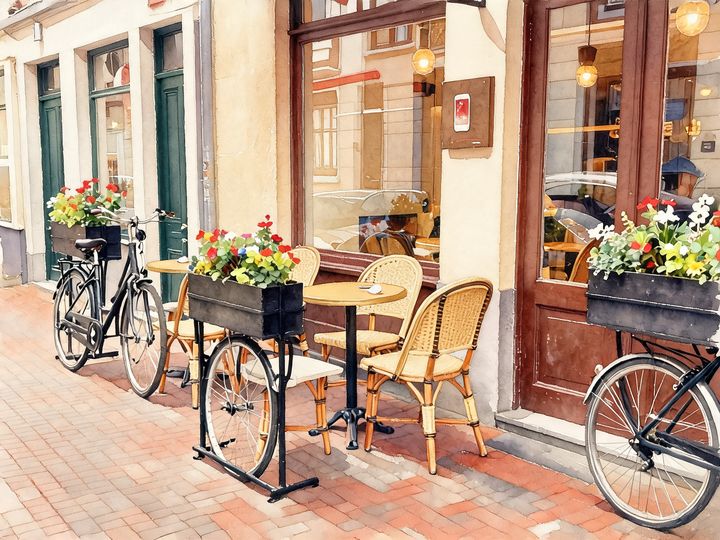
AI Style Transfer
Redraw any photo as a watercolor, oil painting, pencil sketch, pixel art, pop art or ukiyo-e print, keeping the subject and composition.

AI Logo Maker
Type your brand name and what you do, and get logo ideas in the style you pick.
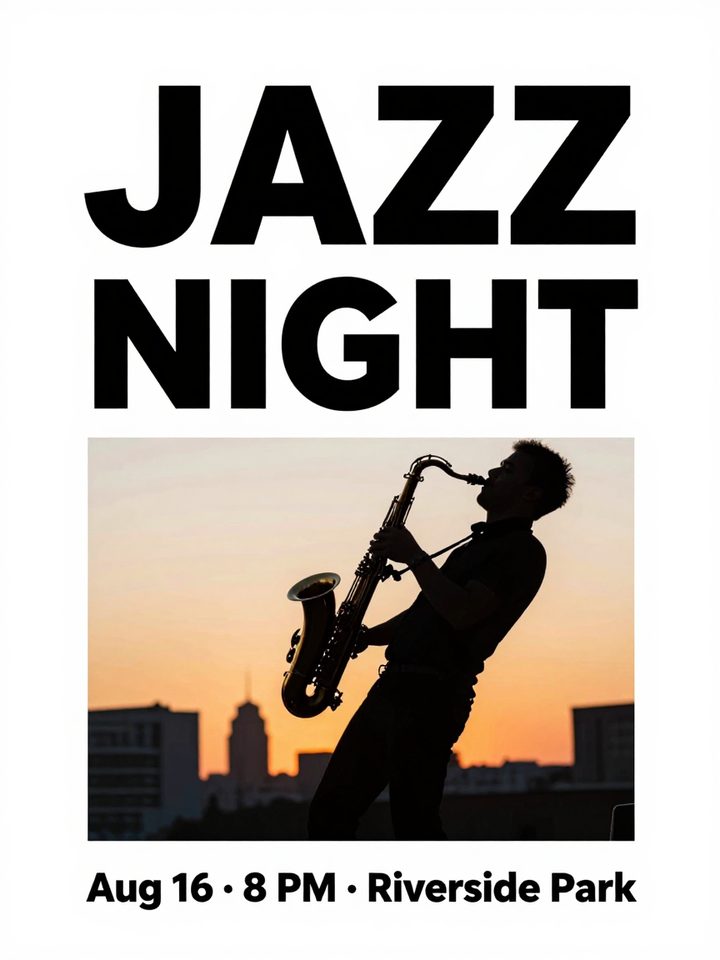
AI Poster Maker
Describe what the poster is for, add your headline, and get a finished design to share or print.
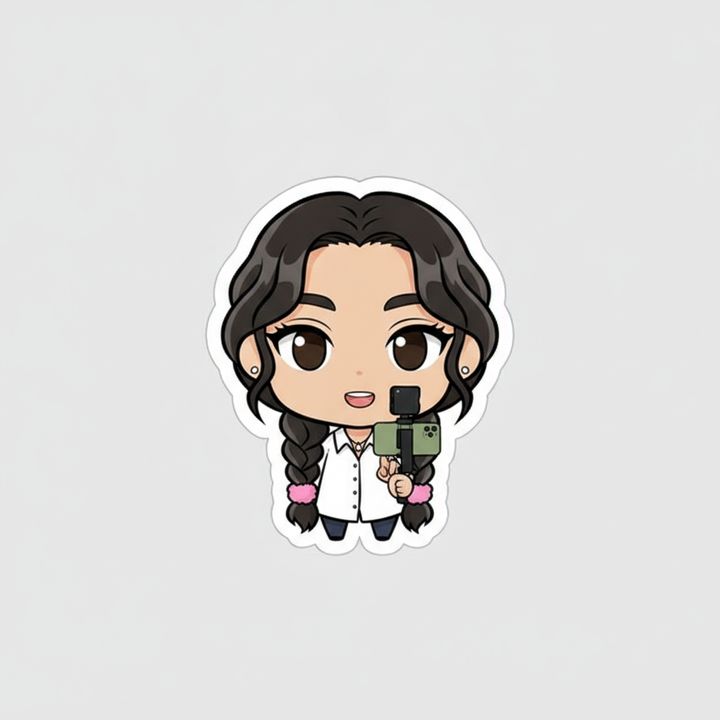
AI Sticker Maker
Upload a photo of yourself or your pet and turn it into a cute, chibi or emoji-style sticker with a white die-cut outline.
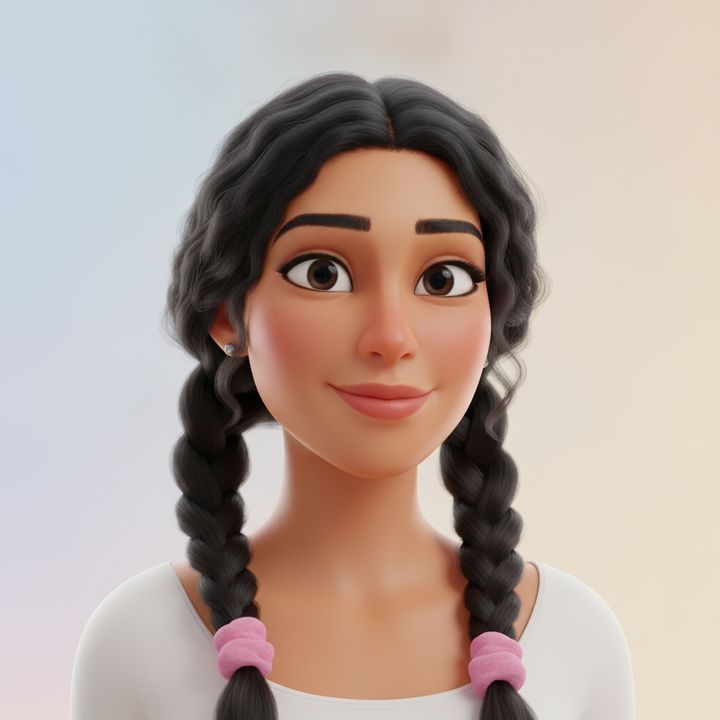
AI Avatar Maker
Turn a photo of yourself into a cartoon, pixel art or clay avatar for your profile picture.
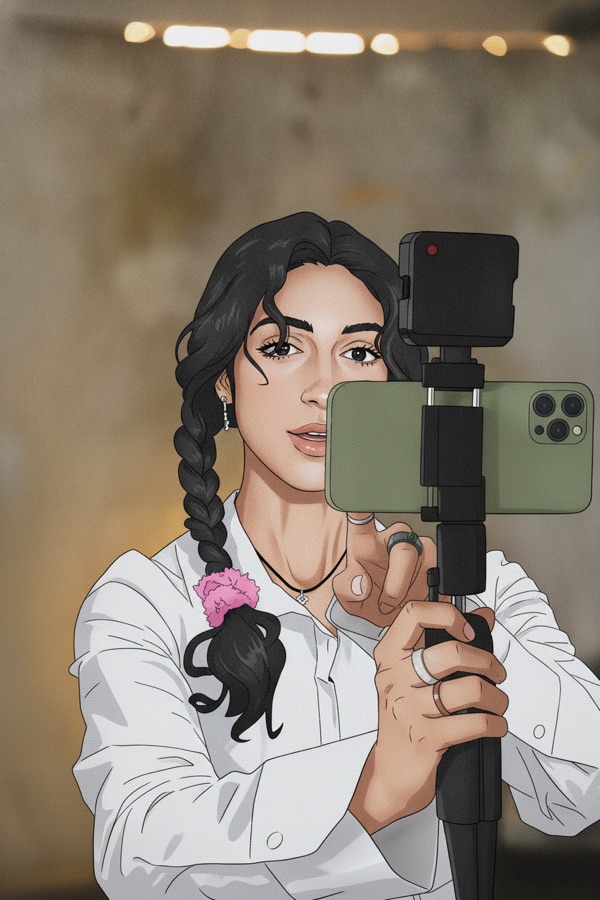
Photo to Anime
Upload a photo and redraw it as anime, manga or a 3D cartoon, keeping the pose, outfit and composition of the original.
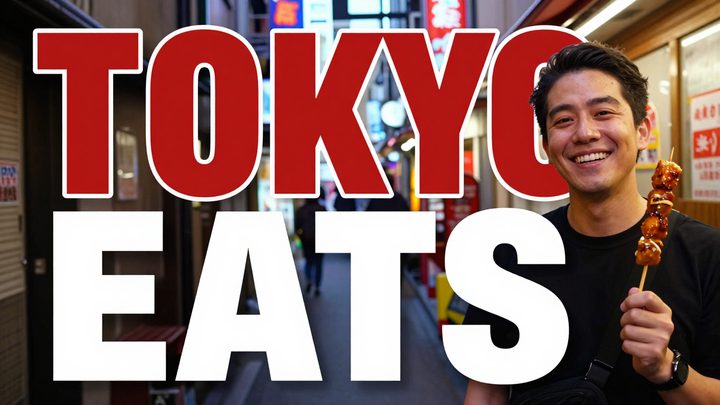
AI Thumbnail Maker
Type your video topic and title, and get a thumbnail with your title in big, readable text.