
Ghost Mannequin Maker
Upload clothing on a mannequin or a model and get a hollow-body garment shot on white, ready for your product pages.
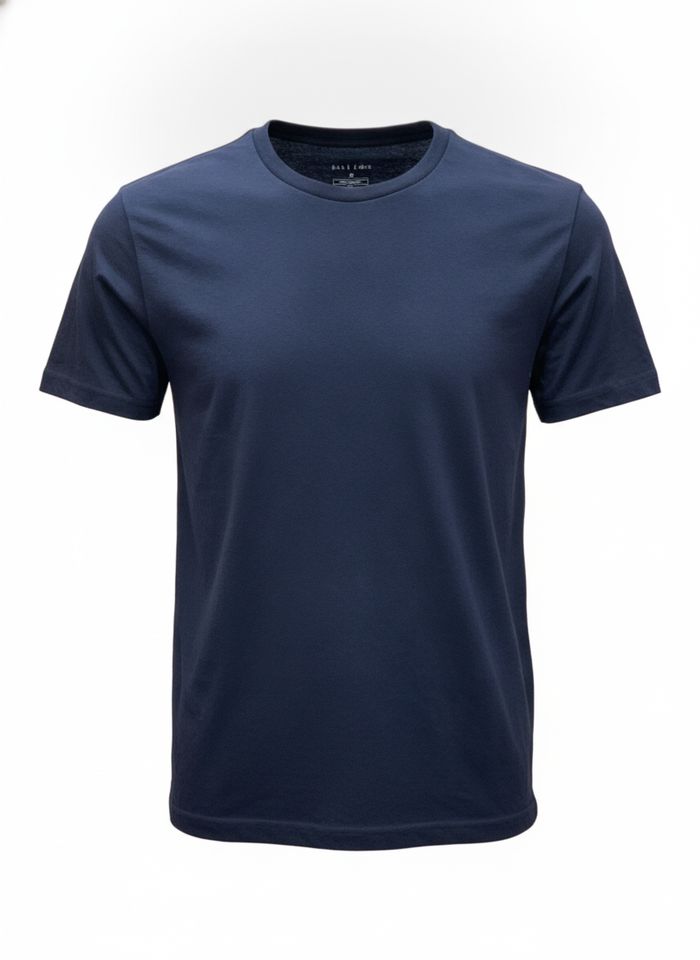
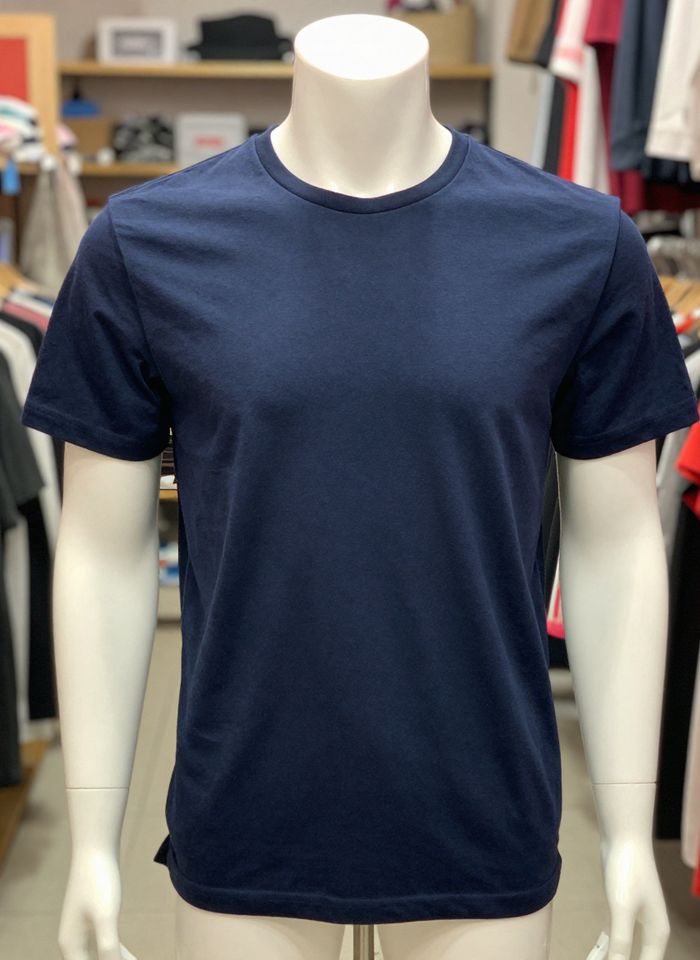 BeforeAfter
How to make a ghost mannequin photo
- 1
Upload a photo of the garment on a mannequin or a model.
- 2
Generate the ghost mannequin version. There are no settings to choose.
- 3
Check the garment details and download the image for your store.
The invisible mannequin look, without the editing
A ghost mannequin photo shows clothing as if it were worn by an invisible body, with the shape of the garment and the inside of the neckline visible. Normally that means shooting on a mannequin, removing it in a photo editor and adding a separate shot of the inner collar. Here you upload one photo of the garment on a mannequin or a model, and the AI removes the body and places the garment on a white background, ready for e-commerce. It is instructed to keep the color, fabric, print, logo, buttons and fit as they are. Check details such as text, small patterns and the neckline before you publish.
Why use this ghost mannequin maker
Mannequin or model, both work
Start from a photo on a dress form or on a person. The head, arms, body and stand are removed, leaving the garment with its worn, three-dimensional shape.
Inside of the neckline filled in
Where the neck or body was, the AI draws the inner collar and back of the garment, the part that usually needs a second photo and careful compositing.
White background for listings
Every result comes on a clean white background, the look most marketplaces and online stores use for apparel main images and catalog pages.
Garment details kept
The tool is instructed to keep the fabric color, print, logo, stitching, buttons and fit, so the image still shows the item a customer will receive.
Who uses ghost mannequin photos
Online clothing stores
Give every product page the same clean hollow-body look, so customers can compare cut and fit across your catalog without a model getting in the way.
Marketplace sellers
Make main images for Amazon, eBay, Etsy or Shopify listings from photos you already shot, then check each platform's image rules before uploading.
Small labels and makers
Show new designs, merch and print-on-demand pieces in a professional way without hiring a studio or learning to remove a mannequin by hand.
Resale and vintage
Turn quick photos of secondhand pieces on a dress form into consistent, tidy listing images for resale apps, vintage shops and online consignment.
Tips for better ghost mannequin photos
Dress the mannequin or model carefully first. Smooth out creases, close buttons and zippers, and pin loose fabric at the back so the garment hangs the way you want it shown.
Shoot straight on, with the whole garment in the frame and nothing cropped at the hem or sleeves. Make front and back views as two separate images.
Use even, soft light without strong shadows. A plain background behind the mannequin makes the edges of the garment easier to separate cleanly.
Zoom in on logos, small text and fine prints before you publish. If a detail came out changed, generate again from a closer, sharper photo of the garment.
Simple, credit-based pricing
Every tool runs on the same credits. One image is 30 credits (60 with Nano Banana Pro), and failed generations are refunded.
Starter
For occasional images
- About 75 images per month
- About $0.13 per image
- 2,250 credits
- All 34 AI image tools
- Commercial use
- Failed generations refunded
Plus
For regular use
- About 150 images per month
- About $0.13 per image
- 4,500 credits
- All 34 AI image tools
- Commercial use
- Failed generations refunded
- Priority support
Business
For teams, agencies and high volume
- About 300 images per month
- About $0.13 per image
- 9,000 credits
- All 34 AI image tools
- Commercial use
- Failed generations refunded
- Dedicated support
Monthly and yearly plans renew automatically at the end of each period until you cancel, and you can cancel anytime in Settings. Credit packs are one-time purchases that never renew; their credits last 1 year. Prices include tax.
Ghost mannequin FAQ
- What is a ghost mannequin photo?
- It is a product photo of clothing that looks as if it were worn by an invisible person. The garment keeps its 3D shape and you can see the inside of the collar, but no mannequin or model. Compared with a flat lay, it shows how the piece fits a body.
- What kind of photo should I upload?
- A sharp, well-lit photo of one garment on a mannequin or a model, shot from the front or back, with the whole piece in the frame. Tops, dresses, jackets, hoodies and pants are good candidates.
- Can I use a photo of a person wearing the clothes?
- Yes. The AI removes the person and keeps the garment's shape. Only upload photos you have the right to use, and if the model is someone else, make sure they agreed to the photo being used.
- Will the AI change the garment?
- The tool is instructed to keep the color, fabric, print, logo and fit unchanged. Small text, fine patterns and the inner collar are drawn by the AI, so check them before you publish.
- Can I get a transparent background?
- No. Results come on a solid white background, not as a transparent cutout, at standard 1K resolution, about 1024 pixels on the long side. That suits most store and marketplace listings, but check each platform's image rules.
- Can I make front and back views?
- Yes. Upload each view as a separate photo and generate them one at a time. Shoot both with the same light, distance and framing so the two images look like a matching set on your product page.
- Are my photos private?
- Your photo is only used to create your result. Uploaded originals are deleted from the processing service within 24 hours, and results are saved in My Images. Uploads and results are moderated.
- How much does a ghost mannequin image cost?
- Each image costs 30 credits, and failed generations are refunded automatically. Uploads can be JPG, PNG or WebP up to 10MB. You can use the results in your store and ads, subject to the terms of service.
Related guides
BlogText to Image vs Image to Image: When to Use Which
Text to image starts from words; image to image starts from a picture you already have. How the two differ here, when each one fits, and how to use them together.
How to Write an Image Prompt That Works
A four-part way to write prompts for an AI image generator: subject, style, lighting and composition, with five example prompts to copy and change.
Choosing an Image Size and Aspect Ratio
Which aspect ratio to generate for where the image will be used: 1:1, 3:4, 4:3, 9:16 or 16:9, what a 1K image is good for, and how to avoid cropping later.
More AI tools
All tools
Text to Image
Describe what you want, choose a model, and turn your text into a 1K image.
Image to Image
Upload one to four images, describe what you want, and get a new 1K image built from them.
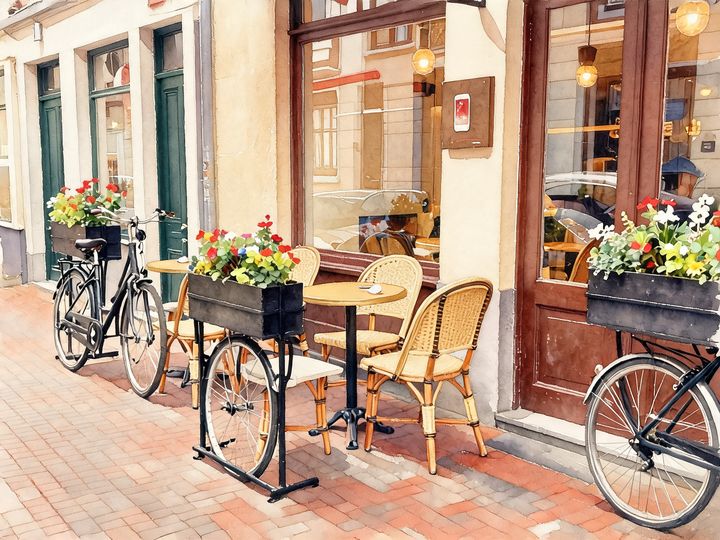
AI Style Transfer
Redraw any photo as a watercolor, oil painting, pencil sketch, pixel art, pop art or ukiyo-e print, keeping the subject and composition.
AI Logo Maker
Type your brand name and what you do, and get logo ideas in the style you pick.
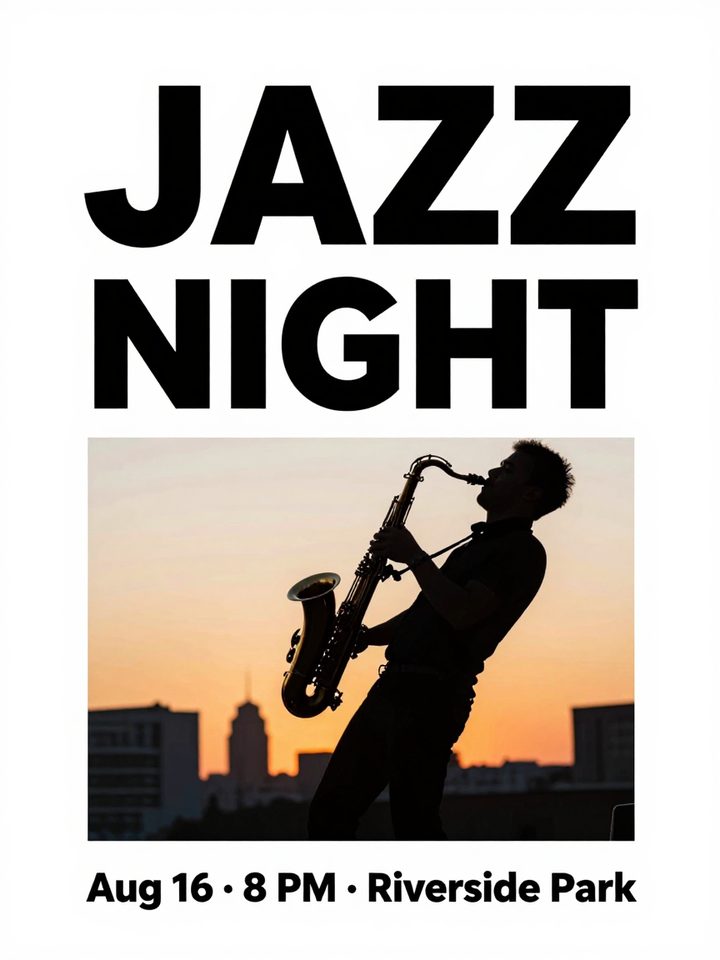
AI Poster Maker
Describe what the poster is for, add your headline, and get a finished design to share or print.
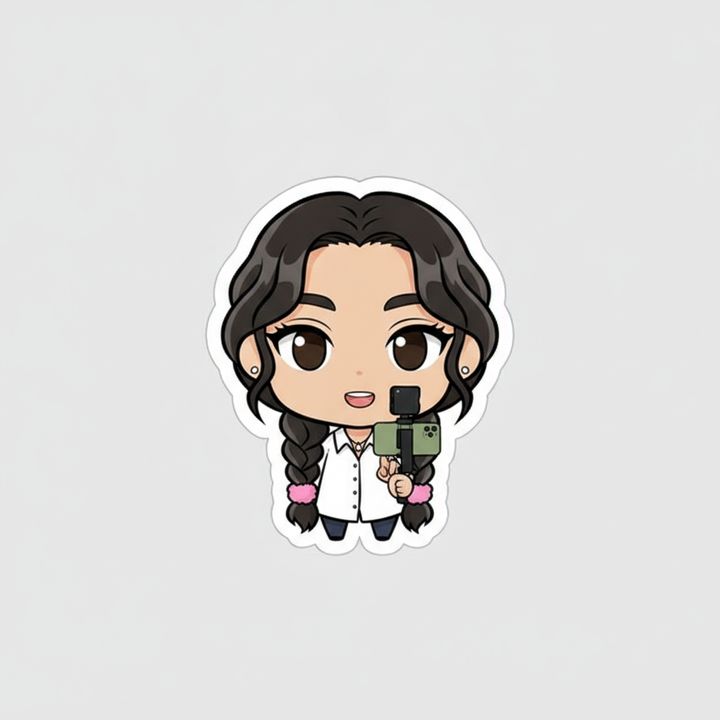
AI Sticker Maker
Upload a photo of yourself or your pet and turn it into a cute, chibi or emoji-style sticker with a white die-cut outline.
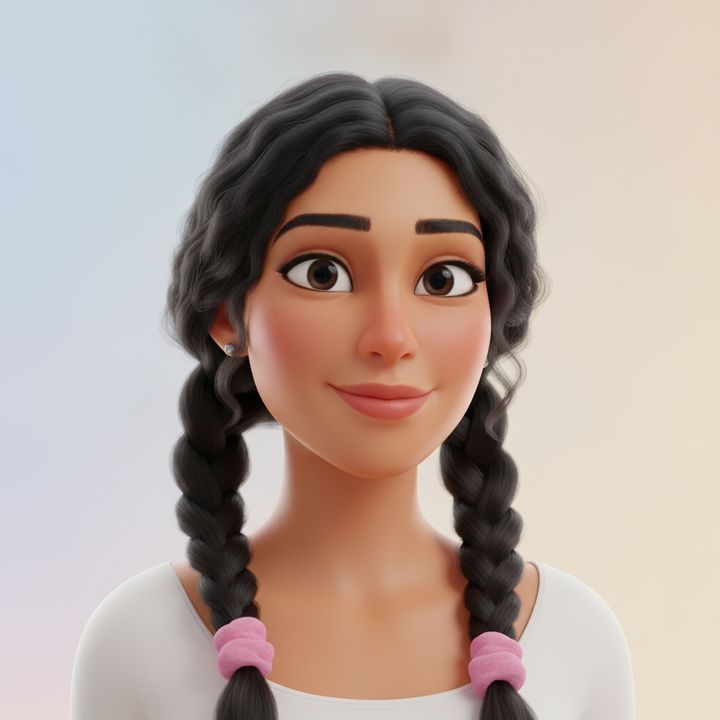
AI Avatar Maker
Turn a photo of yourself into a cartoon, pixel art or clay avatar for your profile picture.
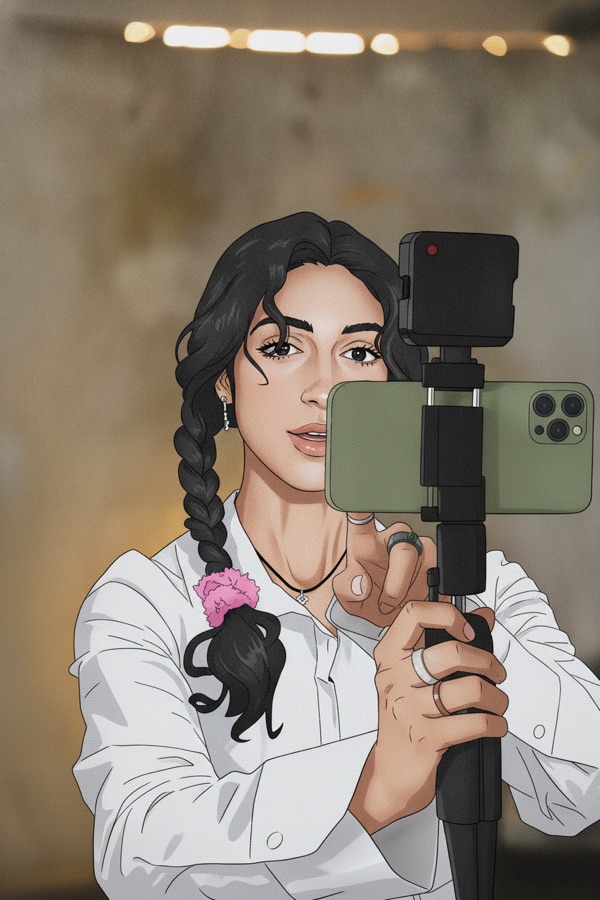
Photo to Anime
Upload a photo and redraw it as anime, manga or a 3D cartoon, keeping the pose, outfit and composition of the original.
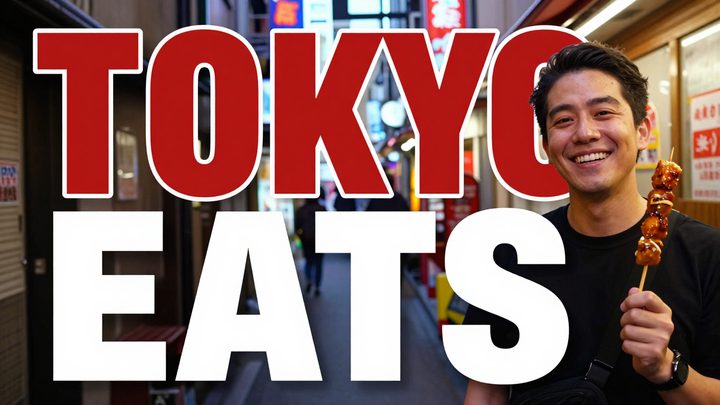
AI Thumbnail Maker
Type your video topic and title, and get a thumbnail with your title in big, readable text.