Nano Banana AI Photo Editor
Upload a photo, describe the change in plain words, and get the edited image.
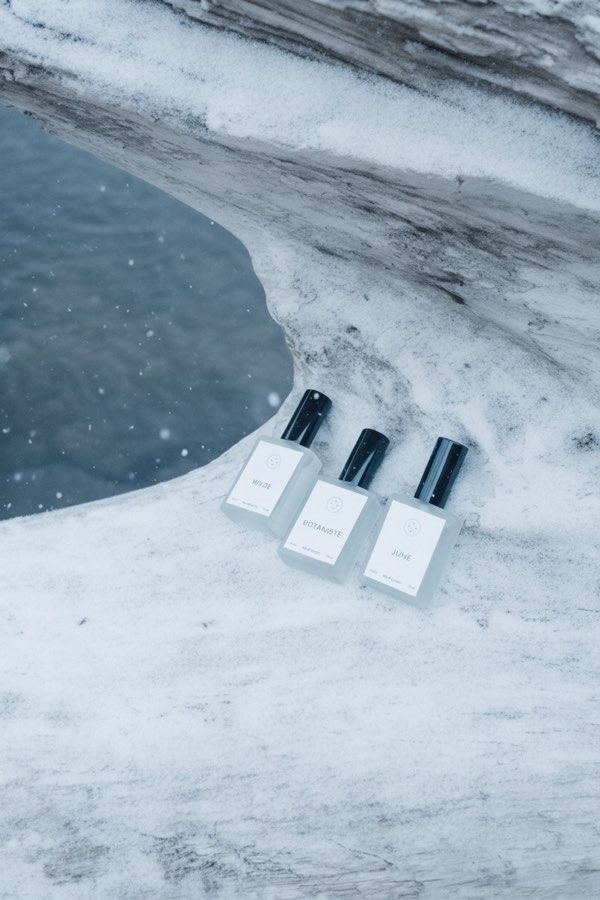
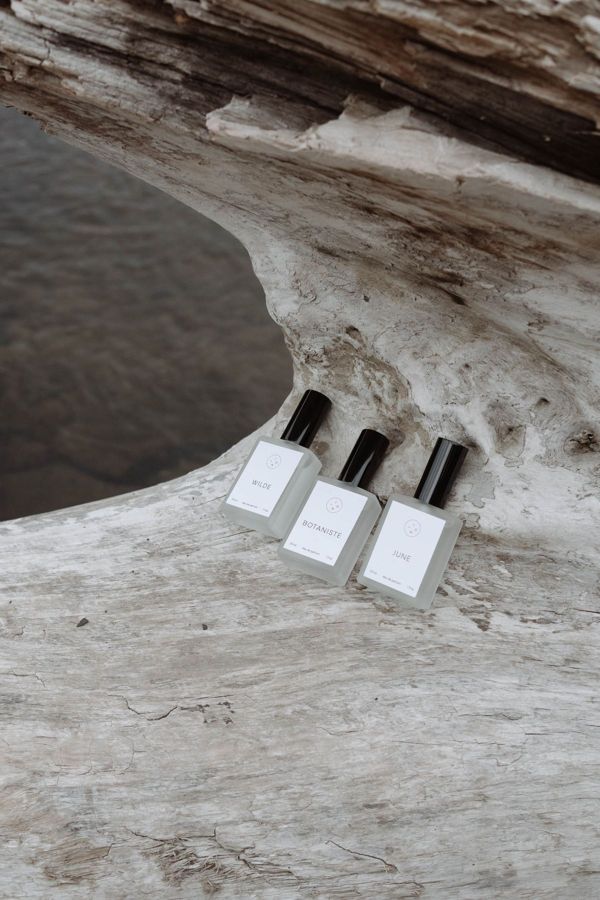 BeforeAfter
How to edit a photo with Nano Banana
- 1
Upload the photo you want to edit.
- 2
Describe the change, for example "replace the sky with a sunset".
- 3
Download the result, or upload it again for the next edit.
What is Nano Banana?
Nano Banana is the nickname of Gemini 2.5 Flash Image, Google's image generation and editing model. It became popular because it can edit a photo from a plain-language instruction while keeping the rest of the picture consistent. Here you can use it without any setup: upload a photo, type what should change, and the model edits just that. Change a background, swap the season, add or remove objects, restyle a room or try new colors, with no masks, layers or editing skills needed.
Why edit photos with Nano Banana here
No face swapping
The model is told never to change anyone's face or identity, so you can edit clothes, backgrounds and lighting around people while they stay recognizable as themselves.
Works on almost any photo
Rooms, products, food, landscapes, pets and portraits all work with the same plain-language box, whether you are planning a renovation, fixing a listing photo or touching up a trip.
Finish results from other tools
Images made with Text to Image, the product photo tool or the headshot tool can be uploaded here for a final change, such as a new background color or one extra prop.
Every version is kept
Each edit is saved as a new image in My Images, so earlier versions are still there if a later edit goes in the wrong direction and you want to try again.
What you can do with Nano Banana
Change the background
Put a product, a room or a scene in a new setting, from a city street to a clean studio backdrop.
Add or remove objects
Clear away clutter, or add props such as plants, furniture or a cup of coffee.
Change season, weather and light
Turn summer into winter, day into night, or a gray sky into a sunset.
Restyle and recolor
Try a new color for a product, a wall or an outfit before you make it real.
Tips to edit photos with text
When there are several similar objects, say which one, such as “the vase on the left table”. Vague words like “it” or “that” can lead to edits in the wrong place.
Use concrete words for color and material. “Matte sage green paint” or “light oak floor” gives a more predictable result than “nicer” or “more modern”.
For big changes, such as a new season or a full room restyle, mention the light too, for example “soft winter daylight”, so the whole scene matches.
Start from the largest, sharpest photo you have. Edits build on the detail in the original, so a clear, well-lit photo gives a cleaner result than a small screenshot.
Simple, credit-based pricing
Every tool runs on the same credits. One image is 30 credits (60 with Nano Banana Pro), and failed generations are refunded.
Starter
For occasional images
- About 75 images per month
- About $0.13 per image
- 2,250 credits
- All 34 AI image tools
- Commercial use
- Failed generations refunded
Plus
For regular use
- About 150 images per month
- About $0.13 per image
- 4,500 credits
- All 34 AI image tools
- Commercial use
- Failed generations refunded
- Priority support
Business
For teams, agencies and high volume
- About 300 images per month
- About $0.13 per image
- 9,000 credits
- All 34 AI image tools
- Commercial use
- Failed generations refunded
- Dedicated support
Monthly and yearly plans renew automatically at the end of each period until you cancel, and you can cancel anytime in Settings. Credit packs are one-time purchases that never renew; their credits last 1 year. Prices include tax.
Nano Banana FAQ
- Is this the official Nano Banana from Google?
- We are an independent service that runs Google's Nano Banana model (Gemini 2.5 Flash Image) through its API. We are not affiliated with or endorsed by Google.
- How do I write a good edit instruction?
- Say what should change and what should stay, for example: "Change the background to a snowy forest, keep the person and their clothes the same." One clear change per edit works best.
- Can I make several edits?
- Yes. Download the result, upload it again and give the next instruction. Step-by-step edits are usually more accurate than one long instruction.
- Will it keep text and logos?
- It tries to keep everything you don't mention, but small text on labels or signs can come out slightly changed. Check the details before you use the image.
- What can't I edit?
- Sexual content, real people in misleading or harmful situations, and images you don't have the rights to, such as removing someone else's watermark. Requests that break our usage policy are blocked before anything is charged.
- How much does an edit cost?
- Each edit costs 30 credits, shown on the Generate button. If a generation fails, the credits are refunded automatically.
- Can Nano Banana change or swap a person's face?
- No. The editor is told never to change anyone's face or identity, and face swapping isn't offered. You can still edit what is around people, such as their clothes, accessories, the background or the lighting.
- Can I combine two photos into one?
- No, the editor takes one photo at a time. To add something to the scene, describe it in words, for example “add a golden retriever sitting next to the sofa”, and the model draws it into the picture.
Related guides
BlogText to Image vs Image to Image: When to Use Which
Text to image starts from words; image to image starts from a picture you already have. How the two differ here, when each one fits, and how to use them together.
How to Write an Image Prompt That Works
A four-part way to write prompts for an AI image generator: subject, style, lighting and composition, with five example prompts to copy and change.
More AI tools
All tools
Text to Image
Describe what you want, choose a model, and turn your text into a 1K image.
Image to Image
Upload one to four images, describe what you want, and get a new 1K image built from them.
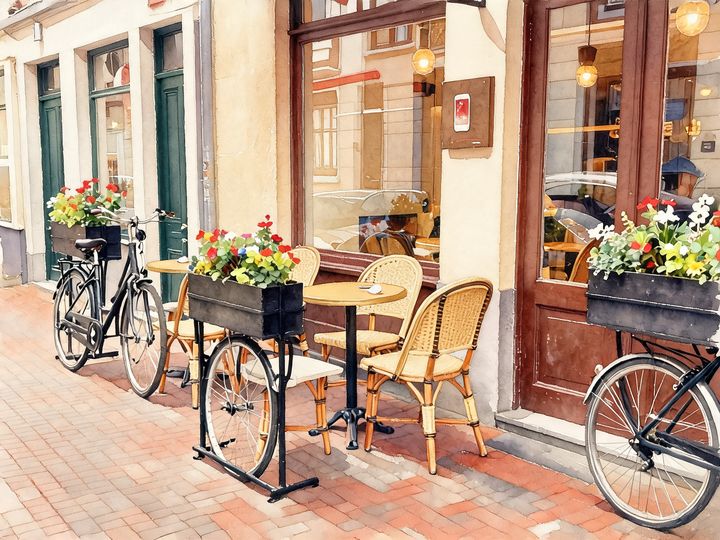
AI Style Transfer
Redraw any photo as a watercolor, oil painting, pencil sketch, pixel art, pop art or ukiyo-e print, keeping the subject and composition.
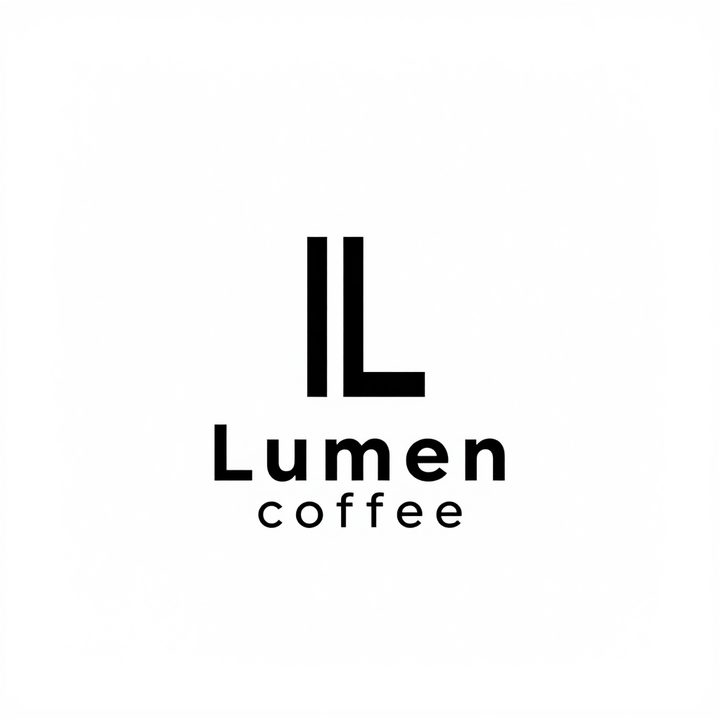
AI Logo Maker
Type your brand name and what you do, and get logo ideas in the style you pick.
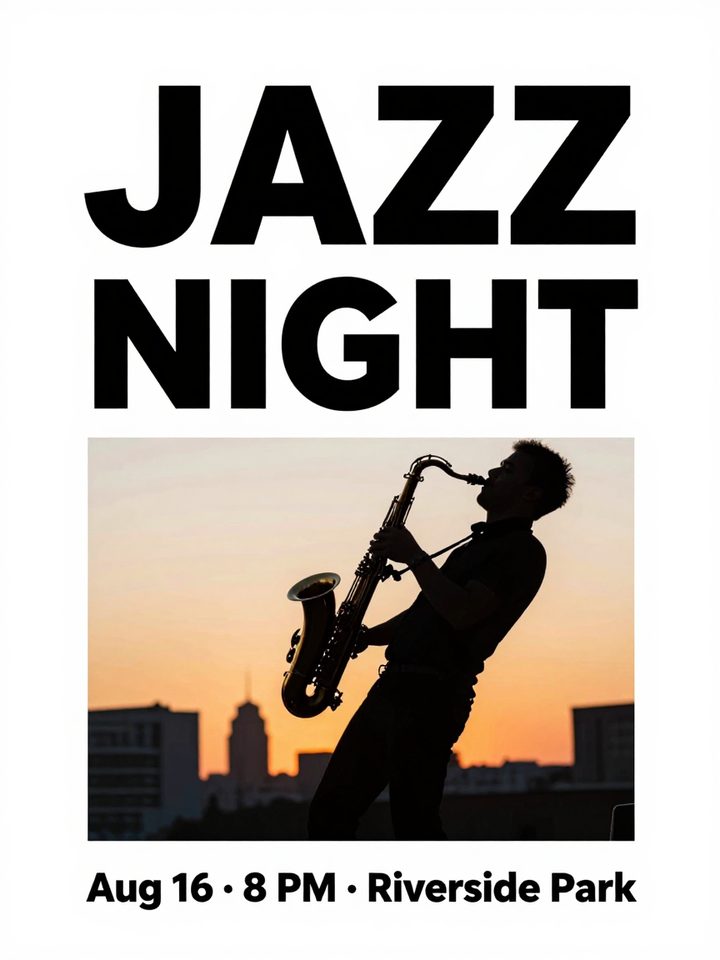
AI Poster Maker
Describe what the poster is for, add your headline, and get a finished design to share or print.
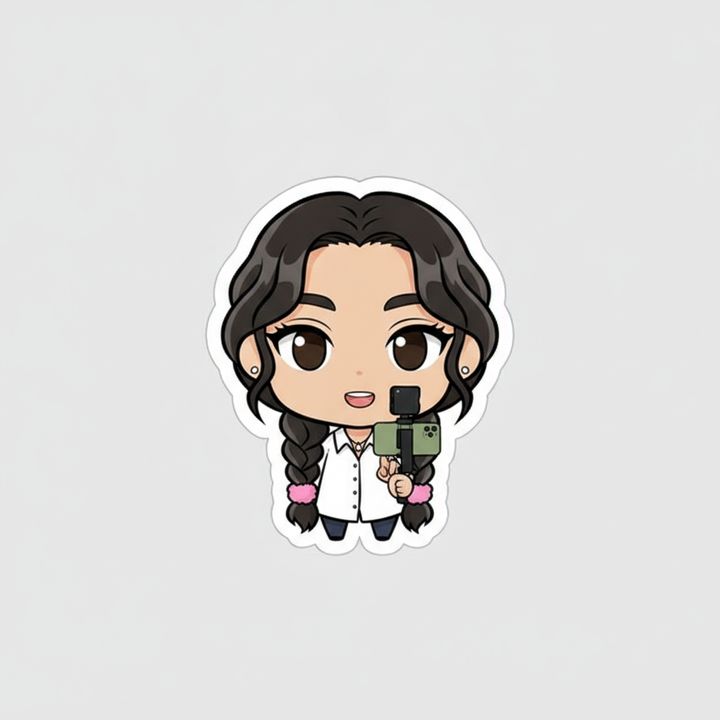
AI Sticker Maker
Upload a photo of yourself or your pet and turn it into a cute, chibi or emoji-style sticker with a white die-cut outline.
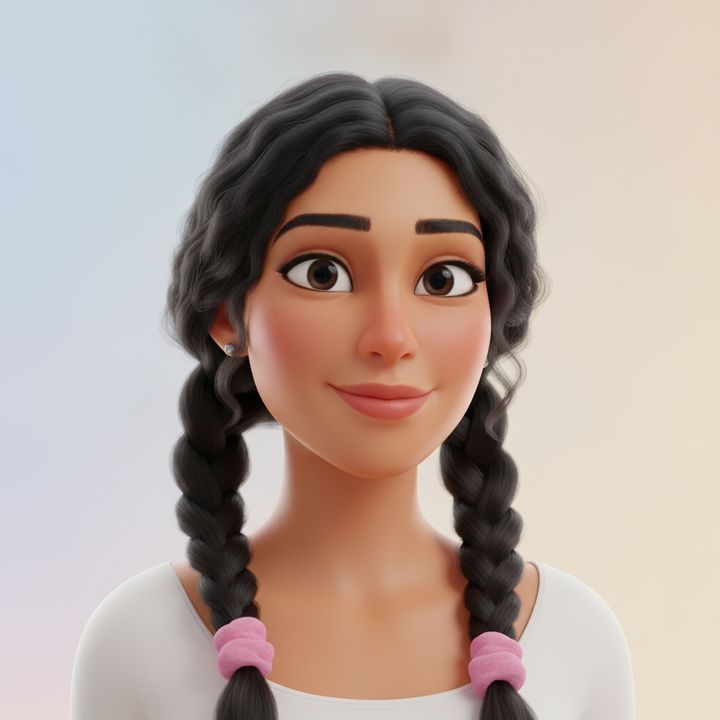
AI Avatar Maker
Turn a photo of yourself into a cartoon, pixel art or clay avatar for your profile picture.
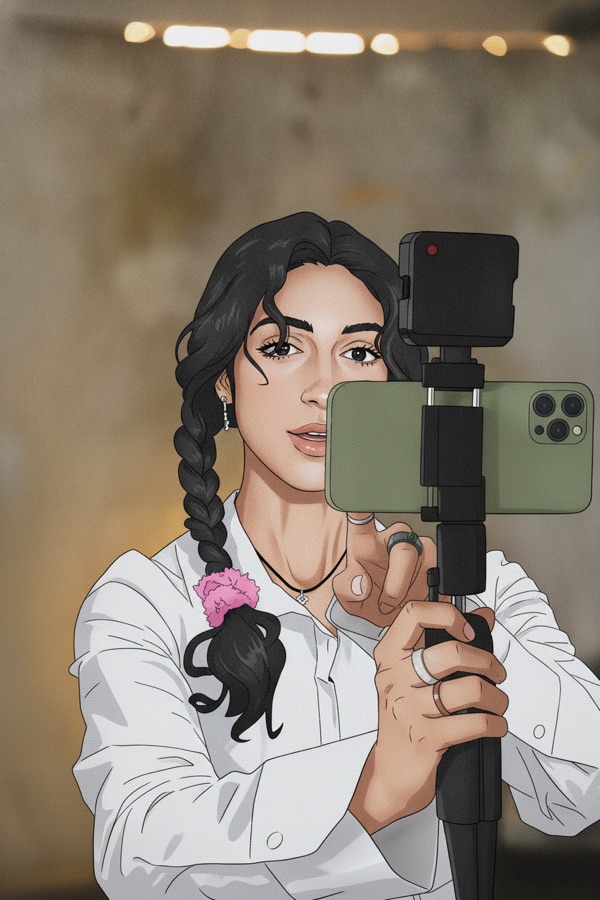
Photo to Anime
Upload a photo and redraw it as anime, manga or a 3D cartoon, keeping the pose, outfit and composition of the original.
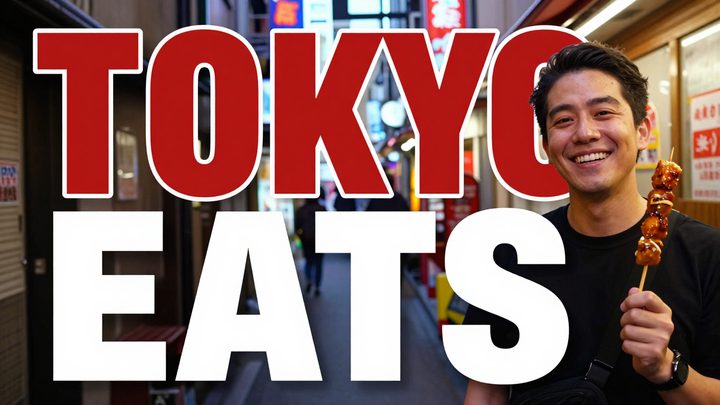
AI Thumbnail Maker
Type your video topic and title, and get a thumbnail with your title in big, readable text.